
Overview
Flat rates let you keep the shipping prices you already set in Shopify and control which methods customers see at checkout. Use this when you want Shopify to stay the source of truth for price (for example Standard$9.95, Express $14.95), but you need rules such as:
- Hide Express for Western Australia
- Rename Standard to a clearer Australia Post name
- Show only Click & Collect for selected postcodes
- Put the cheapest option first
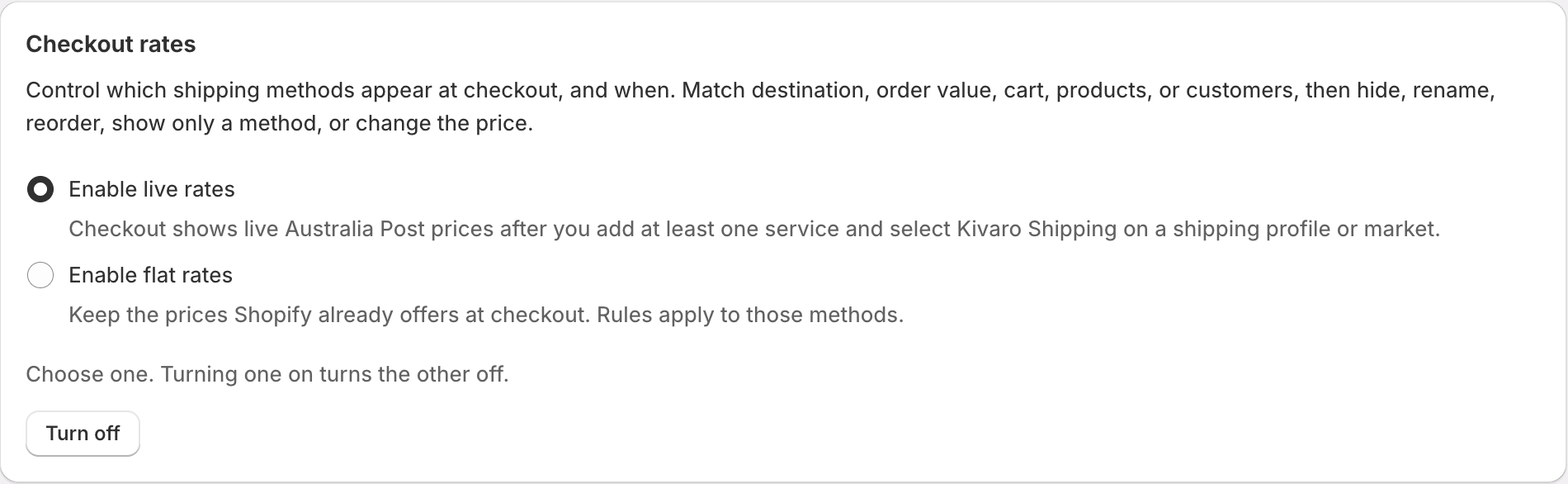
Flat rates are available on the Pro plan. You can use either flat rates or live carrier-calculated rates, not both at the same time.
$0 with a Shopify discount. Flat rate rules change visibility and naming, not the dollar amount Shopify already stores on the method.
Before you start
1
Create the rates in Shopify
In Shopify Admin → Settings → Shipping and delivery, add the delivery methods you want customers to see (name and price). AusPost MyPost Business reads those methods; it does not create the prices.
2
Open Checkout shipping rates
In AusPost MyPost Business, go to Checkout Shipping Rates in the sidebar.
3
Allow delivery customizations
The first time you enable flat rates, Shopify asks AusPost MyPost Business to manage delivery customizations. Approve that prompt so rules can hide, rename, or reorder methods at checkout.
Enable flat rates
1
Choose Enable flat rates
On Checkout shipping rates, select Enable flat rates. If live rates were on, the app turns them off first.
2
Pick a market or shipping profile
Use the Market or Shipping profile selector so you can see the methods Shopify offers in that scope. A rule still matches the same checkout name and price wherever checkout shows them.
3
Add at least one rule
Click Add rule, choose the Shopify method, pick an action, add conditions, and save the rule.
4
Save the page
Click Save on the Checkout shipping rates page so Shopify publishes the delivery customization. Until you save, the services card may show Not active.
How flat rate rules work
- Rules run at checkout against the methods Shopify already priced.
- Each rule targets one method (matched by name and, when present, price).
- Conditions on a rule are combined with AND or OR. Each rule can have up to 10 conditions.
- If no rule matches, customers see the Shopify method unchanged.
- If Shopify cannot apply a postcode, product, or item-count condition, the method can still appear (fail-open). Keep important “must hide” cases as simple as you can.
Rule actions
Conditions
PO Box matching is not available on flat rates. Shopify often omits the street line on its own rates. Use live rates if you need to hide a service for PO Boxes, locked bags, or parcel lockers.
Simple examples
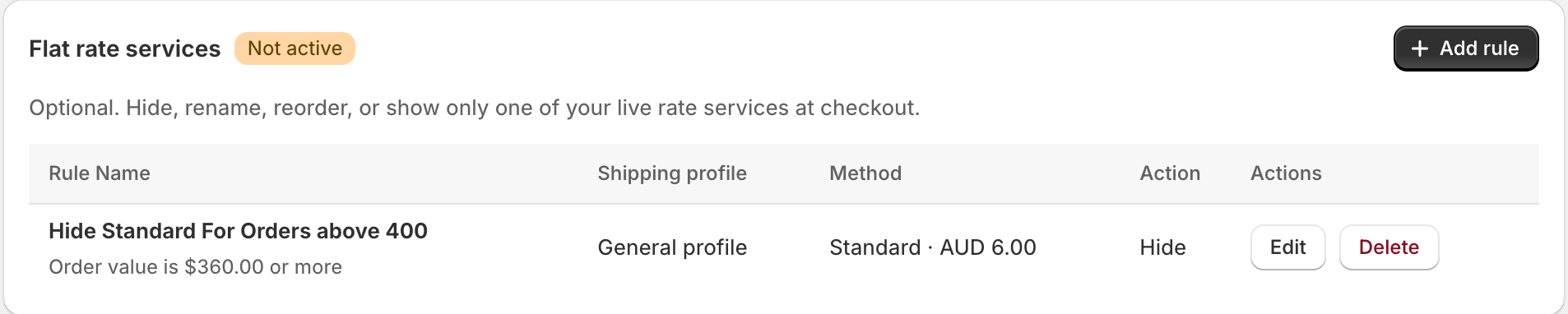
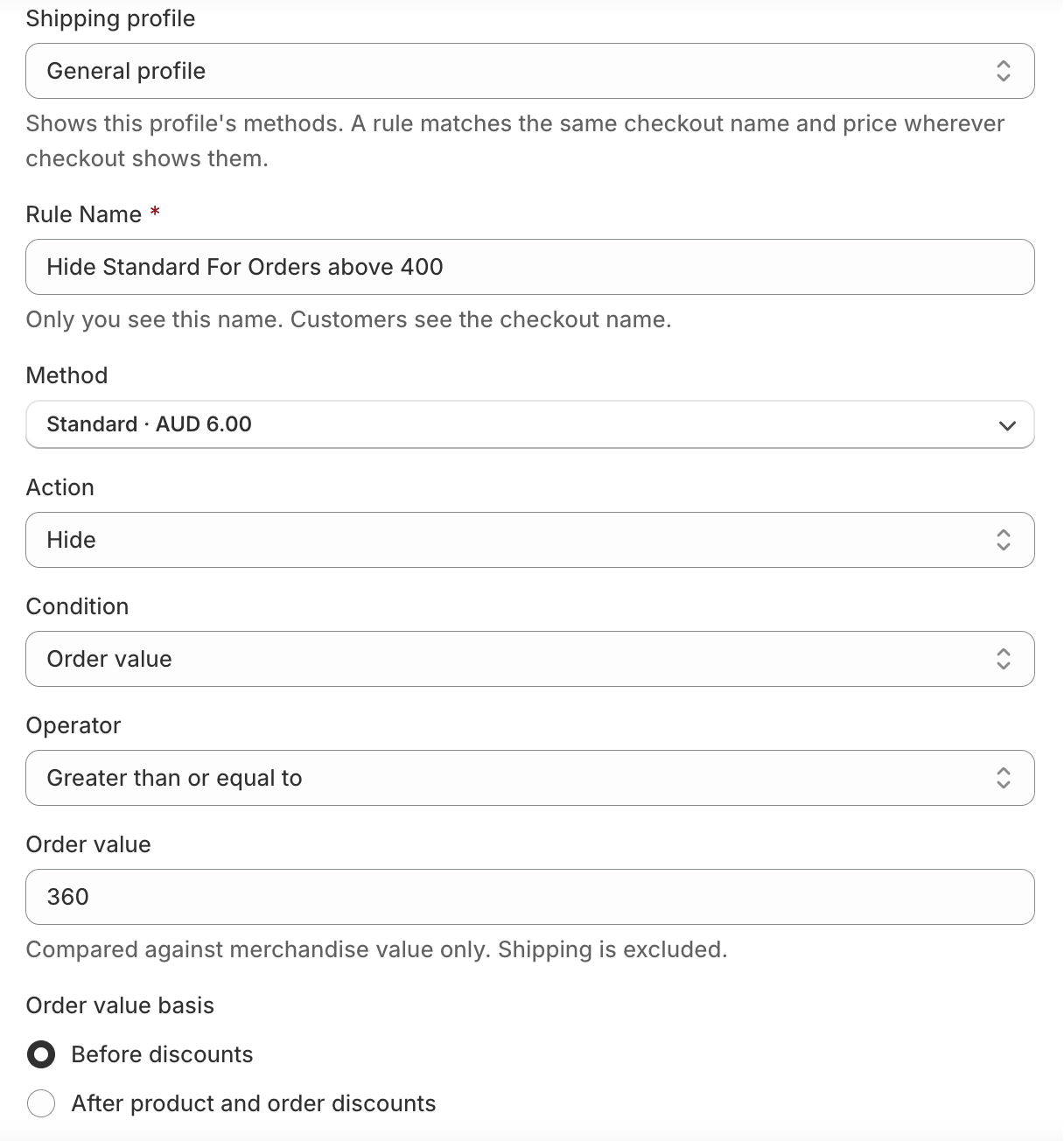
Hide Standard on higher-value orders
Keep Shopify’s Standard price (for example$6.00) for smaller carts, and hide it when the merchandise total is high so Express is the option customers see.
Hide Express for Western Australia
A Perth customer should not see overnight-style Express if you cannot meet that promise.
NSW, VIC, and other states still see Express at the Shopify price.
Rename Standard for Sydney metro
Keep$9.95 in Shopify, but show a clearer name at checkout.
Show only pickup in selected postcodes
You offer Click & Collect in Shopify at$0. For nearby postcodes, hide every other method.
Customers outside those postcodes still see Standard and Express.
Hide Standard when the cart has a bulky SKU
Express (or another remaining method) stays available so checkout is not empty.
Free shipping vs flat rates
To make Standard$0 on orders over $80, do not use a flat rate hide/rename rule. Use a free shipping rule so Shopify applies a shipping discount.
If you hide the method that the free-shipping discount applies to, customers will not get that free option.
Tips and troubleshooting
I don't see Enable flat rates
I don't see Enable flat rates
Checkout shipping rates require the Pro plan. Upgrade, then reopen Checkout Shipping Rates.
No methods are listed
No methods are listed
Create the rate in Shopify Admin → Settings → Shipping and delivery first, then return to this page. Use the market or profile selector if you have more than one shipping scope.
Shopify asked for extra permission
Shopify asked for extra permission
Flat rates stay off until you allow AusPost MyPost Business to manage delivery customizations. Open the page again and approve the prompt.
The rule saved but checkout did not change
The rule saved but checkout did not change
Click Save on the Checkout shipping rates page (saving the rule editor alone is not enough). Then retry checkout in a private window. Shopify can keep a rate response for up to 15 minutes.
A method I hid is still visible
A method I hid is still visible
Confirm the rule is enabled, the method name and price match Shopify exactly, and at least one condition matches the test cart. If every method would be hidden, the app leaves options visible on purpose.
Free shipping disappeared
Free shipping disappeared
A free-shipping discount only applies to a method that stays visible. If you hid that method, turn the hide rule off or point free shipping at a method you keep showing.
Related guides
- Carrier-calculated shipping (live rates) - quote Australia Post at checkout
- Free Shipping Rules - make a visible method free
- Shipping Rules - automate the label after the order is placed