
Overview
Bulk operations allow you to create shipping labels for multiple orders simultaneously, significantly reducing the time spent on order fulfillment. This feature is perfect for high-volume stores or when processing orders in batches.Accessing Bulk Operations
From Orders Page
- Navigate to Orders in your Shopify admin
- Select multiple unfulfilled orders using checkboxes
- Click Create shipping labels from the bulk actions dropdown
From App Dashboard
- Open the app
- Navigate to the Orders section
- Use filters to find orders that need labels
- Select multiple orders and click Create shipping labels
Bulk Label Creation Process
1
Select Orders
Choose orders that need shipping labels (up to your plan limit)
2
Review Orders
Check each order for completeness and accuracy
3
Configure Packages
Set package details for each order or use bulk settings
4
Select Shipping Services
Choose shipping options for each order
5
Review and Purchase
Final review before purchasing all labels
6
Download Labels
Download and print all generated labels
Order Selection
Eligible Orders
Orders must meet these criteria for bulk processing:- Unfulfilled items: Contains items that haven’t been fulfilled
- Valid shipping address: Complete and accurate delivery address
- Recent orders: Created within the last 60 days
- Paid status: Order must be paid or authorized
Selection Limits
- Batch limits: Maximum of 2000 labels in a single batch
- Weight limits: Total weight cannot exceed Australia Post limits
- Value limits: High-value orders may require individual processing
The app will automatically exclude ineligible orders and show you which ones
were skipped and why.
Bulk Configuration Options
Package Settings
Apply to All
Apply to All
Set the same package for all selected orders: - Choose from flat-rate
packaging - Select custom packages - Use default package settings
Individual Configuration
Individual Configuration
Configure packages individually: - Review each order’s items - Select
appropriate package size - Adjust weights if needed - Override bulk settings
for specific orders
Set Custom Dimensions
Use Set custom dimensions to apply one-off package dimensions (length, width, height in cm) to selected orders. This is useful when an order uses a package size that isn’t in your saved custom packages, or when you want to try different dimensions without changing settings.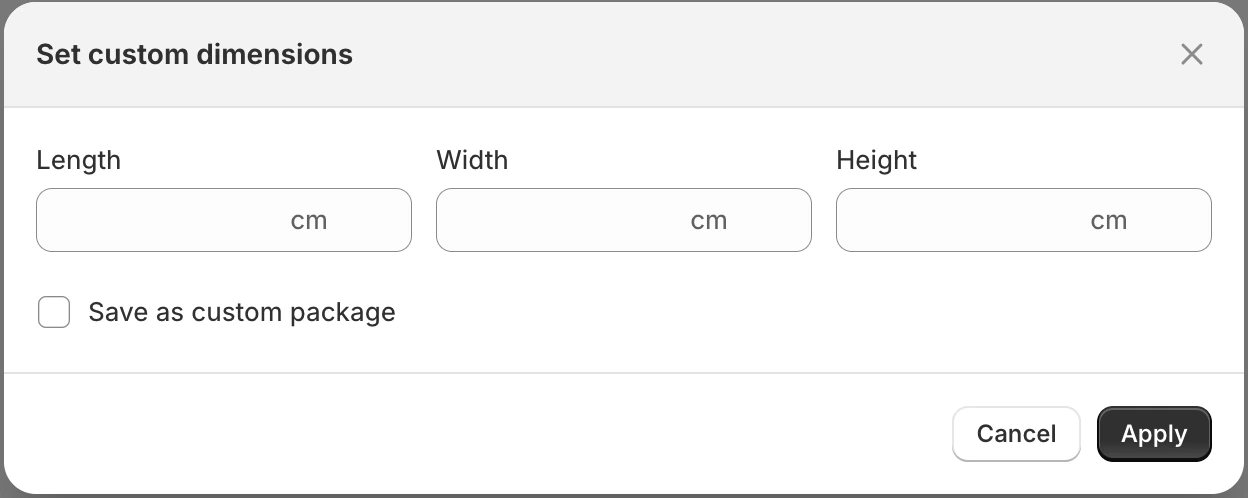
How to use
1
Select orders
Select the orders you want to apply custom dimensions to from the shipping labels table.
2
Open the bulk action
Click the bulk actions menu and choose Set custom dimensions.
3
Enter dimensions
Enter Length, Width, and Height in centimetres. All three are required and must be greater than 0.1. Each dimension cannot exceed 105 cm (MyPost Business limit). At least two dimensions must be 5 cm or greater.
4
Optional: Save as custom package
Check Save as custom package to add this size to your custom package list for future use. Enter a Package name when this is checked. The new package will appear in the package list and will be applied to the selected orders.
5
Apply
Click Apply (or Apply and save if saving as custom package) to apply the dimensions to all selected orders. Quotes will refresh with the new dimensions.
Display in the table
- One-off (not saved): The package column shows One off package plus the dimensions you entered.
- Saved as custom package: The package column shows the package name and dimensions like any other custom package, and that package is selected.
Validation rules
- All three dimensions (length, width, height) are required.
- Each value must be greater than 0.1.
- No dimension may exceed 105 cm.
- At least two dimensions must be 5 cm or greater.
- If you save as custom package, the package name is required and must not duplicate an existing name.
Shipping Services
Configure shipping services in bulk:- Parcel Post: Standard delivery for all orders
- Express Post: Priority delivery for all orders
- Mixed Services: Different services based on order criteria
- Rule-based: Apply shipping rules automatically
Additional Options
Signature on Delivery
Require signature for all orders or high-value items only
Transit Cover
Add insurance coverage for valuable shipments
Tracking Notifications
Automatically send tracking details to customers
Fulfill later
Buy labels now without fulfilling Shopify orders yet (Growth+)
Ship together
Combine eligible orders into one Australia Post label
Customs Declarations
Handle international shipping requirements
Review and Validation
Pre-Purchase Review
Before purchasing labels, the system validates:- Address accuracy: All shipping addresses are complete
- Weight calculations: Package weights are within limits
- Service availability: Selected services are available for destinations
- Payment verification: Australia Post account has sufficient funds
Error Handling
If some orders fail validation:Partial Success
Partial Success
- Successful orders: Labels are generated and ready to print
- Failed orders: Shown with specific error messages
- Option to retry failed orders individually
Complete Failure
Complete Failure
- No labels are purchased if critical errors occur
- Detailed error report provided
- Contact support for assistance with complex issues
Label Management
Download Options
After successful bulk processing:- Download all labels: Download all labels as a single PDF based on your configured print layout (A4 single page, A4 multiple pages, or A6)
- Print directly: Send directly to your printer using your configured print settings
Best Practices
Preparation
1
Organize Orders
Group orders by shipping method, destination, or priority
2
Check Inventory
Ensure all items are available and ready to ship
3
Prepare Packages
Have appropriate packaging materials ready
4
Verify Addresses
Check for any address corrections needed
Processing Efficiency
Batch Size
Batch Size
- Process orders in manageable batches (10-50 orders) - Avoid overwhelming your system or Australia Post API - Consider your plan limits and processing capacity
Timing
Timing
- Process during off-peak hours for better performance - Avoid processing during Australia Post maintenance windows - Allow time for error resolution if needed
Quality Control
Quality Control
- Review a sample of orders before bulk processing - Spot-check generated labels for accuracy - Verify package selections make sense
Error Prevention
- Address validation: Use Shopify’s address validation features
- Weight verification: Double-check item weights and package selections
- Service selection: Ensure chosen services are appropriate for destinations
- Payment method: Verify Australia Post account has sufficient funds
Bulk Delivery Instructions
Efficiently add delivery instructions to multiple orders simultaneously. This feature is perfect for seasonal campaigns, special handling requirements, or when you need to apply consistent instructions across multiple orders. Note that any existing Shopify delivery instructions for orders will be preserved and combined with bulk instructions.Adding Bulk Delivery Instructions
1
Select Orders
Choose the orders you want to add delivery instructions to
2
Access Bulk Settings
Click on the bulk actions menu and select “Add delivery instructions”
3
Enter Instructions
Type your delivery instructions that will apply to all selected orders
4
Review and Apply
Review the instructions and apply them to all selected orders
Use Cases for Bulk Delivery Instructions
Seasonal Campaigns
Add instructions like “Handle with care - Holiday gift” for seasonal orders
Special Handling
Apply “Fragile - Extra protection required” for delicate items
Delivery Preferences
Set “Leave at front door if no answer” for contactless delivery
Customer Instructions
Add “Call before delivery” for orders requiring customer contact
Best Practices
- Be Specific: Use clear, actionable instructions
- Keep it Concise: Avoid overly long instructions that may not fit on labels
- Consider the Recipient: Write instructions that delivery drivers can easily follow
- Test First: Try bulk instructions on a small batch before applying to large orders
Troubleshooting
Common Issues
Orders Excluded
Orders Excluded
Problem: Some orders are automatically excluded from bulk processing
Solutions: - Check if orders are already fulfilled - Verify shipping
addresses are complete - Ensure orders are within the 60-day limit - Check
payment status
Label Generation Fails
Label Generation Fails
Problem: Labels fail to generate for some orders Solutions: - Verify
Australia Post account has sufficient credit - Check package weight limits -
Ensure shipping services are available for destinations - Review international
shipping requirements
Performance Issues
Performance Issues
Problem: Bulk processing is slow or times out Solutions: - Reduce
batch size - Process during off-peak hours - Check internet connection
stability - Contact support if issues persist
Refunding Shipping Labels
Refunding Shipping Labels
Need to refund labels purchased in bulk? Currently, Australia Post does not provide a way to refund labels through their API. When you purchase labels in bulk, all labels are created within a single Australia Post transaction. To refund labels:
- Log in to your Australia Post MyPost Business account
- Navigate to the Transactions tab
- Click View for the bulk transaction containing your labels
- Click View for the specific label you want to refund
- Click the red Refund button
All labels from a bulk purchase are in a single transaction, but each label must be refunded individually. If the refund is successful, the charges will be returned to your credit card or PayPal account within 5–10 business days.
Recovery Options
If bulk processing fails:- Retry individual orders: Process failed orders one by one
- Split batches: Break large batches into smaller groups (max 2000 labels per batch)
- Manual processing: Handle problematic orders individually
- Contact support: Get help with persistent issues at