
Complete Setup Guide
This comprehensive guide covers everything you need to know about setting up and using the app. If you’re just getting started, we recommend beginning with our Quick Start guide for a streamlined setup process. The app streamlines your shipping process by integrating directly with Australia Post’s MyPost Business platform. Create shipping labels instantly, manage bulk operations, and automate your fulfillment workflow - all from within your Shopify admin.What You’ll Get
Instant Label Generation
Create shipping labels instantly for individual orders or bulk operations
Flexible Packaging
Choose from Australia Post flat-rate packaging or create custom packages
Bulk Operations
Generate multiple shipping labels at once for efficient order fulfillment
Ship Together
Buy one Australia Post label for multiple orders to the same address
Fulfill Later
Buy labels now and fulfil Shopify orders when parcels are ready (Growth+)
Purchase Label
Buy another label for replacements, returns, or standalone domestic shipments
Packing Slips
Generate professional packing slips with order details for your shipments
Split Shipments
Divide orders into multiple shipments for items in different locations or with different fulfillment needs
Smart Shipping Rules
Automate package selection and shipping options based on order conditions
Partial Fulfillments
Handle partial order fulfillments with ease and accuracy
Multiple Locations
Manage shipping from multiple warehouse locations seamlessly
International Shipping
Handle customs declarations and export documentation for global orders
Tracking Page
Monitor all shipments with real-time tracking updates and event timelines (Paid plans only)
Tracking Alerts
Automated alerts for shipment issues and delays (Paid plans only)
Prerequisites
Before you begin, make sure you have:- Active Shopify Store - Your store must be live and accessible
- Australia Post MyPost Business Account - You’ll need an active account with Australia Post
- Valid Payment Method - Either a credit/debit card or business credit account with Australia Post
Don’t have a MyPost Business account? You can sign up for a free account at auspost.com.au/business/shipping/mypost-business. With a free MyPost Business account, you can save up to 40% on domestic shipping and up to 35% on international shipping as your shipping volume grows.
Installation
Step 1: Install the App
Add from Shopify App Store
Add from Shopify App Store
- Visit the Shopify App Store and search for ” ” 2. Click Install and follow the installation prompts 3. Grant the required permissions when prompted
Step 2: Connect Your Australia Post Account
Get Your Merchant Token
Get Your Merchant Token
Retrieve your unique merchant token from Australia Post: 1. Log in to your
Australia Post MyPost Business account 2. Navigate
to “eCommerce Partners” and find ""

- Click Connect and ensure you have a payment method added to your account
- Copy the generated merchant token
Configure in Shopify
Configure in Shopify
Connect your account in the Shopify app: 1. Open the
app in your Shopify admin 2. Click Connect MyPost Business Account 3.
Paste your merchant token 4. Select your preferred payment method 5. If
using a business credit account, enter your account number 6. Click Save
Basic Setup
Configure Default Settings
Label Preferences
Label Preferences
Set up your default printing and label preferences: - Choose your default
print layout (A4 or A6) - Select label format based on your printer setup -
Configure international shipping preferences (A4 only)
Postage Options
Postage Options
Configure your default shipping services and options: - Set default shipping
services (Parcel Post, Express Post) - Configure signature on delivery
preferences - Set up transit cover options for valuable items
Package Options
Package Options
Set up your packaging preferences: - Choose from Australia Post flat-rate
packaging - Create custom packages for your specific needs - Set default
package for automatic selection
Return Address
Return Address
Configure your return address for shipping labels:
- Review your fulfillment location addresses
- Configure custom return addresses if using multiple warehouses or 3PL providers
- Ensure return addresses are accurate for customer returns
Create Your First Shipping Label
From Order Details
From Order Details
Create labels for individual orders: 1. Navigate to any unfulfilled order in
your Shopify admin 2. Click Create shipping label in the order details
3. Review and adjust package details if needed 4. Select shipping service
and options 5. Click Buy shipping label
Bulk Label Creation
Bulk Label Creation
Process multiple orders at once: 1. Go to Orders in your Shopify admin
2. Select multiple unfulfilled orders 3. Click Create shipping labels
from the bulk actions 4. Review all orders and make adjustments as needed 5.
Click Buy shipping labels to process all at once
Admin Actions Integration
Admin Actions Integration
Use the “Create Shipping Labels” admin action for seamless integration:
- Orders Listing Page: Select one or more orders and click More actions → Create Shipping Labels
- Order Details Page: Click More actions → Create Shipping Labels for a single order
Key Features
Shipping Rules
Automate your shipping process with intelligent rules:1
Create a Rule
Navigate to Shipping Rules in the app and click Add Rule
2
Set Conditions
Define when the rule applies (order weight, value, customer location, etc.)
3
Configure Actions
Specify what happens when conditions are met (package selection, shipping service,
signature requirements, Extra Cover, etc.)
4
Activate
Enable the rule to start automating your shipping decisions
Package Management
Flat-Rate Packaging
Flat-Rate Packaging
Use Australia Post’s pre-defined satchels and boxes: - Satchels: Extra
Small, Small, Medium, Large, Extra Large (max 5kg) - Boxes: Various
sizes with weight limits - Automatic pricing based on Australia Post rates
Custom Packages
Custom Packages
Create your own package definitions: - Define dimensions (length, width,
height) - Set weight limits - Choose package type (box or satchel) - Set as
default for automatic selection
International Shipping
For international orders, the app supports:- Customs Declarations: Automatic HS code management
- Export Documentation: EDN (Export Declaration Number) handling
- Country-Specific Rules: Different requirements per destination
- Value-Based Processing: Automatic declaration requirements
Usage Tracking
Monitor your app usage with built-in analytics:- Monthly Label Count: Track labels generated each month
- Usage Limits: Monitor against your plan limits
- Recent Activity: View daily and weekly label generation
- Transaction History: Detailed cost breakdown with GST
Shipping label workflows
After connecting MyPost Business, opening the app takes you straight to Shipping Labels.Carrier Accounts
In Settings → Carrier Accounts, connect and manage your Australia Post MyPost Business account (and future carriers as they become available).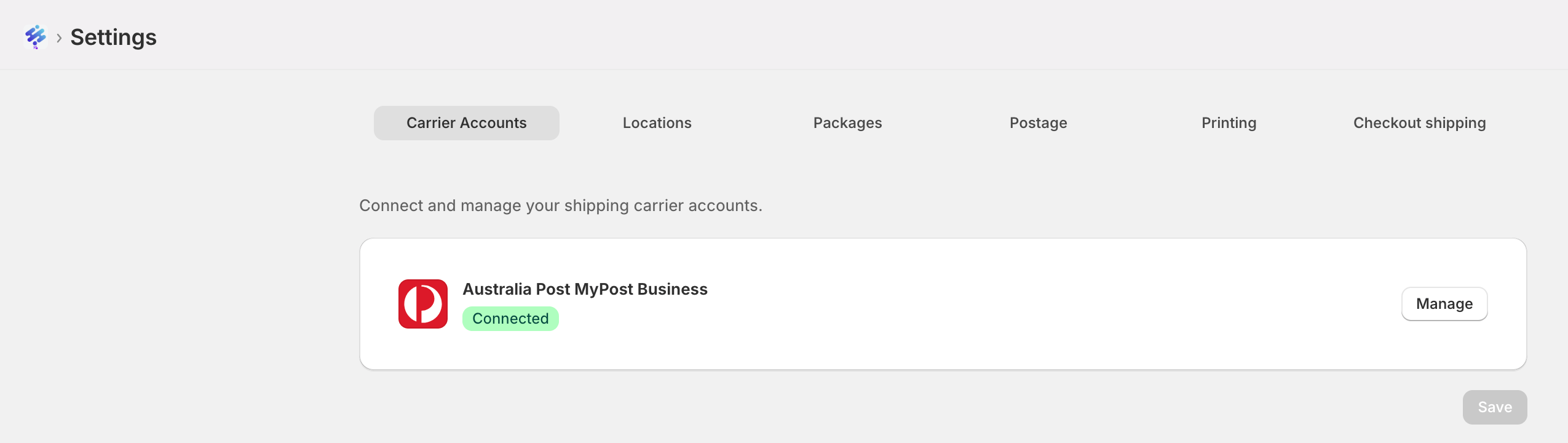
Smarter fulfilment options
Re-download labels for up to 30 days
Lost a PDF? Download or print again from Transactions or Labels purchased for up to 30 days after purchase.- Change A4 / thermal layouts within about 48 hours of buying the label
- After the stored copy expires, the app shows labels as Expired
Edits remembered while you work
On Ready to ship, package, weight, service, and similar edits are kept in this browser until you buy labels for those orders. Clearing browser data or switching devices will not keep those unfinished edits.Tracking Page
Paid Plans Only: The Tracking Page feature is available exclusively for Growth and Scale plan subscribers. Starter plan users must upgrade to access this feature.
Key Features
Real-Time Updates
Tracking information is automatically updated throughout the day
Status Tracking
Monitor shipments with “In Transit” and “Delivered” status tabs
Event Timeline
View detailed event history for each shipment with location and timestamps
Transit Time
See estimated transit times and track delivery progress
What You Can Track
The Tracking Page displays comprehensive information for each shipment:- Order Information: Direct links to Shopify orders
- Tracking Numbers: Copy tracking numbers with one click
- Last Checkpoint: Most recent tracking event location and status
- Transit Time: Days in transit from order date
- Order Date: When the order was placed
- Destination: Delivery address with postcode
- Current Status: Real-time shipment status (In Transit, Delivered, etc.)
Using the Tracking Page
1
Access Tracking
Navigate to the Tracking page in your app
2
View Shipments
Browse all shipments organized by status using the “In Transit” and “Delivered” tabs
3
Expand Details
Click on any shipment row to view the complete event timeline with location details and timestamps
4
Copy Tracking Numbers
Click the copy icon next to any tracking number to quickly copy it to your clipboard
5
View External Tracking
Click the external link icon to view detailed tracking on Australia Post’s website
Automatic Updates
Tracking events are automatically synchronized throughout the day to keep you informed about your shipments. The system:- Updates Status: Automatically refreshes tracking information for active shipments
- Stops at Terminal Status: Ceases updates when packages reach terminal statuses (Delivered, Cancelled, Cannot be delivered)
- Time Zone Aware: Displays all dates and times in your configured timezone
- Event History: Maintains a complete timeline of all tracking events for each shipment
Plan Availability
Available Plans:- ✅ Growth Plan: Full access to Tracking Page
- ✅ Scale Plan: Full access to Tracking Page
- ❌ Starter Plan: Not available (upgrade required)
Tracking Alerts
Paid Plans Only: The Tracking Alerts feature is available exclusively for Growth and Scale plan subscribers. Starter plan users must upgrade to access this feature.
Business Value
- Complete Visibility: See all shipment issues across your entire operation in one dashboard
- Proactive Intervention: Know exactly when to contact Australia Post or customers before problems escalate
- Time Savings: Eliminate manual tracking checks—the system monitors everything automatically
- Cost Reduction: Catch lost or delayed packages early to minimize refunds and reshipments
- Customer Service Excellence: Address issues before customers contact you, improving satisfaction and retention
Key Benefits
- Birds-Eye View: Daily email summaries and dashboard show all issues in one place
- Proactive Operations: Know when to contact Australia Post vs. when to reach out to customers
- Automated Monitoring: System continuously monitors all shipments—no manual checking required
- Actionable Intelligence: Each alert includes suggested actions and all details needed to take action
Alert Types
The system supports seven different alert types:- No Update for X Days: Alerts when packages haven’t received tracking updates
- Awaiting Collection for X Days: Notifies when packages wait for customer collection
- Returned to Sender: Immediate notification when packages are returned
- Label Not Lodged for X Days: Identifies labels created but never lodged with carrier
- Possible Delay: Alerts when carrier indicates possible delivery delays
- Article Damaged: Immediate notification when packages are damaged
- Cannot Be Delivered: Alerts when packages cannot be delivered to address
Email Notifications
Configure email notifications to receive daily summary emails with all active alerts:- Daily Summaries: One email per day with all active alerts
- Categorized Alerts: Alerts grouped by type for easy scanning
- Complete Details: Each alert includes tracking number, order, status, and description
- Multiple Recipients: Add up to 3 email addresses per shop
Getting Started with Alerts
1
Access Alert Settings
Navigate to Alerts → Alert Settings in your app
2
Enable Alerts
Check the “Enable this alert” checkbox for each alert type you want to monitor
3
Configure Thresholds
Set business day thresholds for time-based alerts (No Update, Awaiting Collection, Label Not Lodged)
4
Set Up Email Notifications
Enable email notifications and add recipient email addresses (up to 3)
Other Paid Plan Features
In addition to the Tracking Page and Tracking Alerts, paid plans (Growth and Scale) include access to:- Shopify Flow Automation: Automate shipping label generation with workflow triggers (see Shopify Flow guide)
- Pickup Scheduling: Schedule Australia Post pickups directly from the app
- Label Branding: Customize shipping labels with your branding
For detailed information about Shopify Flow automation, see our Shopify Flow guide. For complete Tracking Alerts documentation, see our Tracking Alerts guide. Pickup scheduling and label branding features are available in the app settings for paid plan subscribers.
Troubleshooting
Common Issues
Invalid Merchant Token
Invalid Merchant Token
Problem: App shows “Invalid merchant token” error Solution: - Verify
your token is correctly copied from Australia Post - Check if your Australia
Post account is active - Regenerate the token if needed
Payment Method Issues
Payment Method Issues
Problem: Labels fail to generate due to payment issues Solution: -
Ensure your Australia Post account has sufficient credit - Verify your payment
method is valid and active - Check business credit account number if using
that option
Label Generation Fails
Label Generation Fails
Problem: Labels are not being created successfully Solution: -
Verify order has a valid shipping address - Check that items are not already
fulfilled - Ensure package weight doesn’t exceed limits - Review
international shipping requirements if applicable
Refunding Shipping Labels
Refunding Shipping Labels
Need to refund a label? Currently, Australia Post does not provide a way to refund labels through their API. To refund a shipping label purchased through the app:
- Log in to your Australia Post MyPost Business account
- Navigate to the Transactions tab
- Click View for the label batch you want to refund
- Click View again for the specific label you want to refund
- Click the red Refund button
If the refund is successful, the charges will be returned to your credit card or PayPal account within 5–10 business days.
Support
Need help? We’re here to assist:Book Free Consultation
Schedule a one-on-one session with our experts
Contact Support
Get help with setup, configuration, or troubleshooting
Advanced Features
Custom Location Addresses
Perfect for merchants using multiple warehouses, 3PLs, or PO Boxes. Configure custom “From / Return” addresses for each fulfillment location.Location Address Configuration
Set up custom addresses for each fulfillment location in your settings. Use your fulfillment location address by default, or override with custom addresses for specific locations.
- Multi-warehouse Support: Different addresses for different warehouses
- 3PL Integration: Custom addresses for third-party logistics providers
- PO Box Support: Use PO Box addresses for specific locations
- Flexible Configuration: Mix default and custom addresses as needed
Per-Order Shipment Configuration
Customize delivery instructions and customer references for individual orders, giving you complete control over each shipment.Order-Level Customization
Access shipment settings for each order by clicking the settings icon in the shipping labels page to customize delivery instructions, customer references, and other shipment-specific details.
- Custom Delivery Instructions: Add specific instructions for each order (uses Shopify delivery instructions by default)
- Customer References: Set unique reference numbers per order
- Order-Specific Settings: Override default settings when needed
- Bulk Configuration: Apply settings to multiple orders at once
Bulk Delivery Instructions
Efficiently add delivery instructions to multiple orders simultaneously, perfect for seasonal campaigns or special handling requirements.Bulk Instructions
Apply delivery instructions to multiple orders at once, streamlining your fulfillment process for special campaigns or handling requirements.
- Seasonal Campaigns: “Handle with care - Holiday gift”
- Special Handling: “Fragile - Extra protection required”
- Delivery Preferences: “Leave at front door if no answer”
- Customer Instructions: “Call before delivery”
Next Steps
Now that you’re set up, explore these advanced features:- Shipping Rules Configuration - Automate your shipping decisions
- Bulk Operations Guide - Efficiently process multiple orders
- International Shipping - Handle global orders
- Package Management - Optimize your packaging strategy
The app integrates seamlessly with your existing Shopify workflow. All
generated labels automatically update order fulfillment status and send
tracking information to customers.