
Tracking Alerts
Get a complete birds-eye view of all your shipments and proactively intervene when issues arise. Tracking Alerts automatically monitors every package and alerts you the moment action is needed—whether that’s contacting Australia Post, reaching out to customers, or investigating delivery problems.Paid Plans Only: The Tracking Alerts feature is available exclusively for Growth and Scale plan subscribers. Starter plan users must upgrade to access this feature.
Business Value
Proactive Operations Management
Instead of reactively responding to customer complaints or discovering problems days later, Tracking Alerts gives you complete visibility into your shipping operations. You’ll know about issues before your customers do, allowing you to:- Intervene Early: Contact Australia Post or customers proactively when packages need attention
- Prevent Escalations: Resolve delivery issues before they become customer service problems
- Save Time: Stop manually checking hundreds of tracking numbers—the system monitors everything automatically
- Reduce Costs: Catch lost or delayed packages early to minimize refunds and reshipments
- Improve Reputation: Demonstrate proactive customer service by reaching out first
When to Contact Australia Post
Tracking Alerts helps you identify exactly when you need to contact Australia Post:- No Tracking Updates: Packages with no updates for several days may be stuck or lost
- Possible Delays: Carrier-flagged delays that need investigation
- Damaged Packages: Immediate notification when damage is reported
- Delivery Failures: Packages that cannot be delivered need address verification
- Labels Not Lodged: Verify labels were properly submitted to Australia Post
Complete Visibility
With daily email summaries and the alerts dashboard, you get:- One-Click Overview: See all issues across all shipments in one place
- Categorized Alerts: Quickly identify which packages need Australia Post contact vs. customer outreach
- Actionable Intelligence: Each alert includes suggested actions and relevant details
- No Missed Issues: Automated monitoring ensures nothing falls through the cracks
Overview
Tracking Alerts automatically monitors all your shipments 24/7 and notifies you when specific conditions require your attention. This transforms your shipping operations from reactive to proactive:- Birds-Eye View: See all shipment issues across your entire operation in one dashboard
- Proactive Intervention: Know exactly when to contact Australia Post or customers before problems escalate
- Time Savings: Eliminate manual tracking checks—the system monitors everything automatically
- Customer Service Excellence: Address issues before customers contact you, improving satisfaction and retention
- Operational Efficiency: Focus your time on resolving issues rather than finding them
Key Features
Complete Visibility
Birds-eye view of all shipment issues across your entire operation in one dashboard
Proactive Alerts
Know exactly when to intervene—contact Australia Post or customers before problems escalate
Daily Email Summaries
Receive categorized alerts grouped by type, making it easy to prioritize actions
Automated Monitoring
System continuously monitors all shipments—no manual checking required
Actionable Intelligence
Each alert includes suggested actions: contact carrier, reach out to customer, or investigate
Smart Thresholds
Set business day thresholds based on your typical delivery times and risk tolerance
Alert Types
The Tracking Alerts system supports seven different alert types, each designed to catch specific shipment issues:1. No Update for X Days
Purpose: Identifies packages that haven’t received tracking updates for a specified number of business days—a key indicator that you may need to contact Australia Post. Business Value:- Early Detection: Catch packages that may be lost or stuck before customers notice
- Proactive Contact: Know exactly when to call Australia Post to investigate missing updates
- Prevent Escalations: Resolve issues before customers file complaints or request refunds
- A package has no tracking updates for the configured number of business days
- The last tracking sync date exceeds the threshold
- Domestic packages with no updates for 3-5 business days
- International packages with no updates for 7-10 business days
- Use the tracking number from the alert when calling Australia Post customer service
- Enable/disable the alert
- Set the number of business days before triggering (default: 3 days)
2. Awaiting Collection for X Days
Purpose: Alerts you when packages are waiting for customer collection for an extended period, helping you proactively reach out to customers. Business Value:- Customer Outreach: Contact customers before packages are returned to sender
- Reduce Returns: Prevent packages from being returned, saving on reshipment costs
- Improve Service: Show customers you’re monitoring their deliveries proactively
- Package status is “Awaiting collection”
- Status has remained unchanged for the configured number of business days
- Packages awaiting collection for 3-5 business days
- Reach out via email or phone to remind customers to collect
- Provide collection location details and hours
- Enable/disable the alert
- Set the number of business days before triggering (default: 3 days)
3. Returned to Sender
Purpose: Immediately notifies you when a package is returned to sender, allowing you to quickly address the issue with the customer. Business Value:- Immediate Action: Know the moment a package is returned so you can contact the customer right away
- Customer Retention: Proactively offer solutions (reshipment, refund, address correction) before customers complain
- Cost Management: Understand return reasons to prevent future returns
- Package status changes to “Returned to sender”
- Any tracking event indicates the package was returned
- Immediately upon receiving this alert
- Review the return reason in tracking details
- Offer solutions: reshipment, refund, or address correction
- If needed, contact Australia Post to understand the specific return reason
- Enable/disable the alert (no threshold needed - triggers immediately)
4. Label Not Lodged for X Days
Purpose: Identifies shipping labels that were created but never lodged with Australia Post, helping you catch operational issues early. Business Value:- Operational Efficiency: Catch labels that were created but never used
- Prevent Delays: Ensure all labels are properly lodged to avoid shipping delays
- Inventory Management: Identify unused labels that may need to be voided
- A tracking record exists but has never been synced with carrier data
- The label was created more than the configured number of business days ago
- Verify the label was actually printed and attached to the package
- Confirm the package was dropped off or picked up by Australia Post
- If the label was never used, consider voiding it to avoid charges
- Contact Australia Post if you believe the label was lodged but not showing in tracking
- Enable/disable the alert
- Set the number of business days before triggering (default: 3 days)
5. Possible Delay
Purpose: Alerts you when Australia Post indicates a possible delivery delay, giving you time to proactively manage customer expectations. Business Value:- Customer Communication: Reach out to customers before they notice the delay
- Expectation Management: Set proper delivery expectations to reduce support inquiries
- Carrier Investigation: Know when to contact Australia Post for delay details
- Package status is “Possible delay”
- Contact Australia Post if the delay seems unusual or extended
- Proactively email customers about the delay with estimated delivery updates
- Monitor the package closely—if delay persists, escalate with Australia Post
- Enable/disable the alert (no threshold needed - triggers immediately)
6. Article Damaged
Purpose: Immediately notifies you when a package is reported as damaged, enabling you to quickly file a claim and resolve the customer issue. Business Value:- Immediate Response: Know instantly when damage occurs so you can act quickly
- Claim Filing: File Australia Post damage claims promptly (time-sensitive)
- Customer Service: Proactively contact customers to arrange replacements or refunds
- Cost Recovery: File claims to recover shipping and product costs
- Package status is “Article damaged”
- Immediately upon receiving this alert
- File a damage claim with Australia Post as soon as possible (claims have time limits)
- Provide tracking number, order details, and damage description
- Request claim number for your records
- After filing the claim, contact the customer to:
- Apologize for the damage
- Offer replacement or refund
- Explain the claim process and timeline
- Enable/disable the alert (no threshold needed - triggers immediately)
7. Cannot Be Delivered
Purpose: Alerts you when a package cannot be delivered to the address, allowing you to quickly resolve delivery issues. Business Value:- Prevent Returns: Contact customers immediately to correct address issues
- Customer Satisfaction: Show proactive service by reaching out first
- Cost Savings: Avoid return shipping costs and reshipment fees
- Delivery Success: Increase successful delivery rate by fixing address problems quickly
- Package status is “Cannot be delivered”
- Immediately upon receiving this alert
- Verify the shipping address with the customer
- Request corrected address if needed
- Arrange for redelivery or pickup
- If you need to update the delivery address on an in-transit package
- To request redelivery with corrected address
- To understand the specific reason delivery failed (incorrect address, access issues, etc.)
- Enable/disable the alert (no threshold needed - triggers immediately)
Setting Up Alerts
Accessing Alert Settings
1
Open the App
In your Shopify admin, open the app from the Apps section
2
Navigate to Alerts
Click Alerts in the left navigation menu (or go directly to
/app/alerts)3
Open Settings
Click the “Alert Settings” button in the top-right corner of the Alerts page (or navigate to
/app/alerts/settings)4
Configure Alerts
Review each alert type and enable the ones you want to monitor
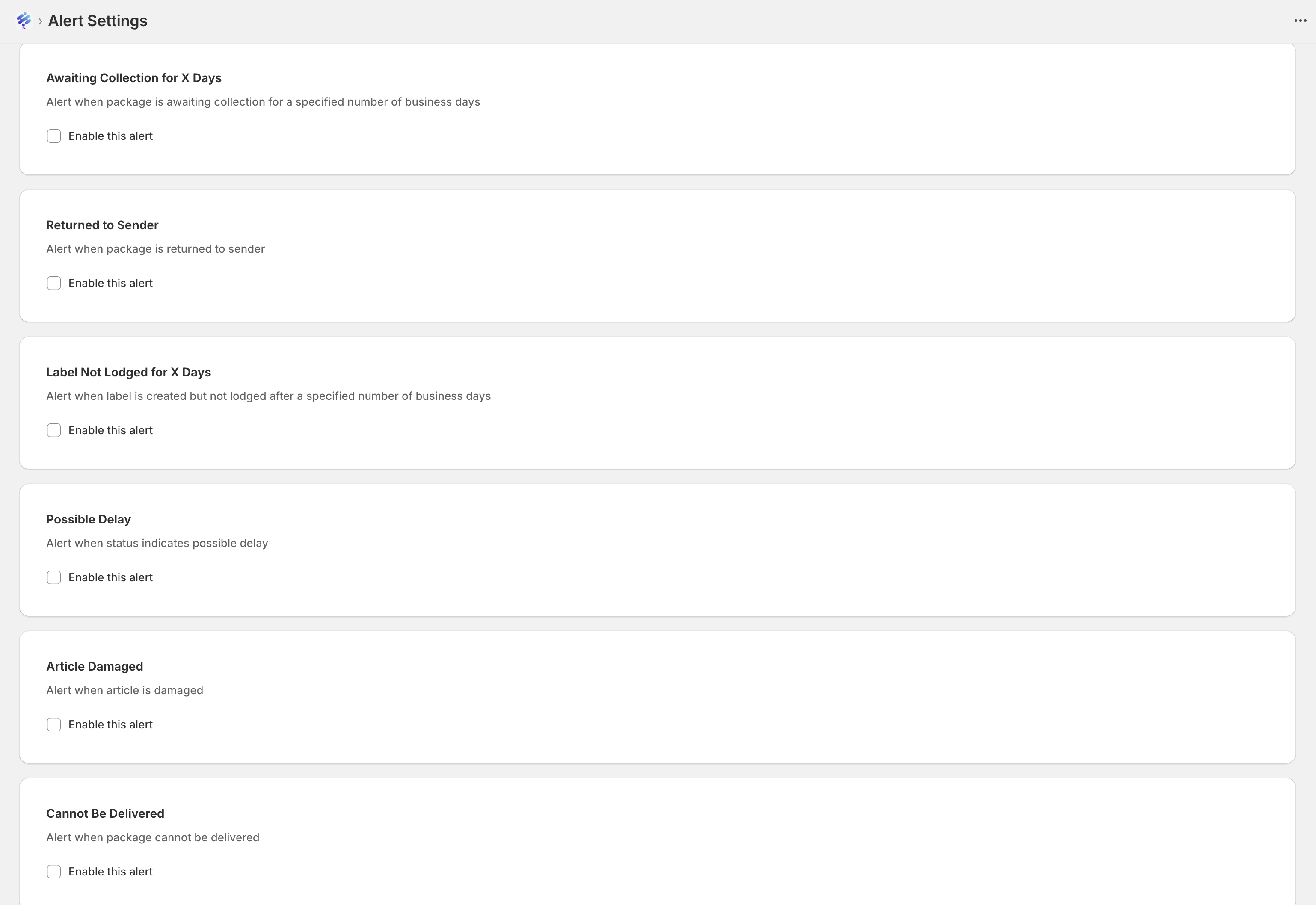
Configuring Alert Rules
Each alert type can be individually configured:Enable/Disable Alerts
Enable/Disable Alerts
For each alert type:
- Find the alert card in the Alert Settings page
- Check the “Enable this alert” checkbox to activate it
- Uncheck to disable the alert
Set Business Day Thresholds
Set Business Day Thresholds
For time-based alerts (No Update, Awaiting Collection, Label Not Lodged):
- Enable the alert
- Configure the number of business days in the alert settings
- The alert will trigger when the threshold is exceeded
Business days exclude weekends and public holidays. The system uses your shop’s configured timezone to calculate business days accurately.
Email Notifications
Setting Up Email Alerts
Receive daily summary emails with all active alerts:1
Enable Email Notifications
In Alert Settings, check the “Enable email notifications” checkbox
2
Add Recipients
Enter up to 3 email addresses in the “Email Recipients” field (comma-separated)
3
Save Settings
The email addresses are automatically saved when you click away from the field
Accessing Email Summaries
Email summaries are automatically sent to the email addresses you configure in Alert Settings. To view the email summary:1
Configure Email Recipients
Go to Alerts → Alert Settings and enable email notifications
2
Add Email Addresses
Enter up to 3 email addresses in the “Email Recipients” field (comma-separated)
3
Check Your Inbox
Daily email summaries are sent automatically when you have active alerts
4
View Email
Open the email from
tracking-notifications@kivaro.io in your email clientEmail Summary Format
You’ll receive a daily email summary that includes:- Total Alert Count: Number of alerts across all categories
- Categorized Alerts: Alerts grouped by type for easy scanning
- Alert Details: For each alert:
- Tracking number
- Order number (clickable link)
- Current status
- Description of the issue
- Number of days (for time-based alerts)
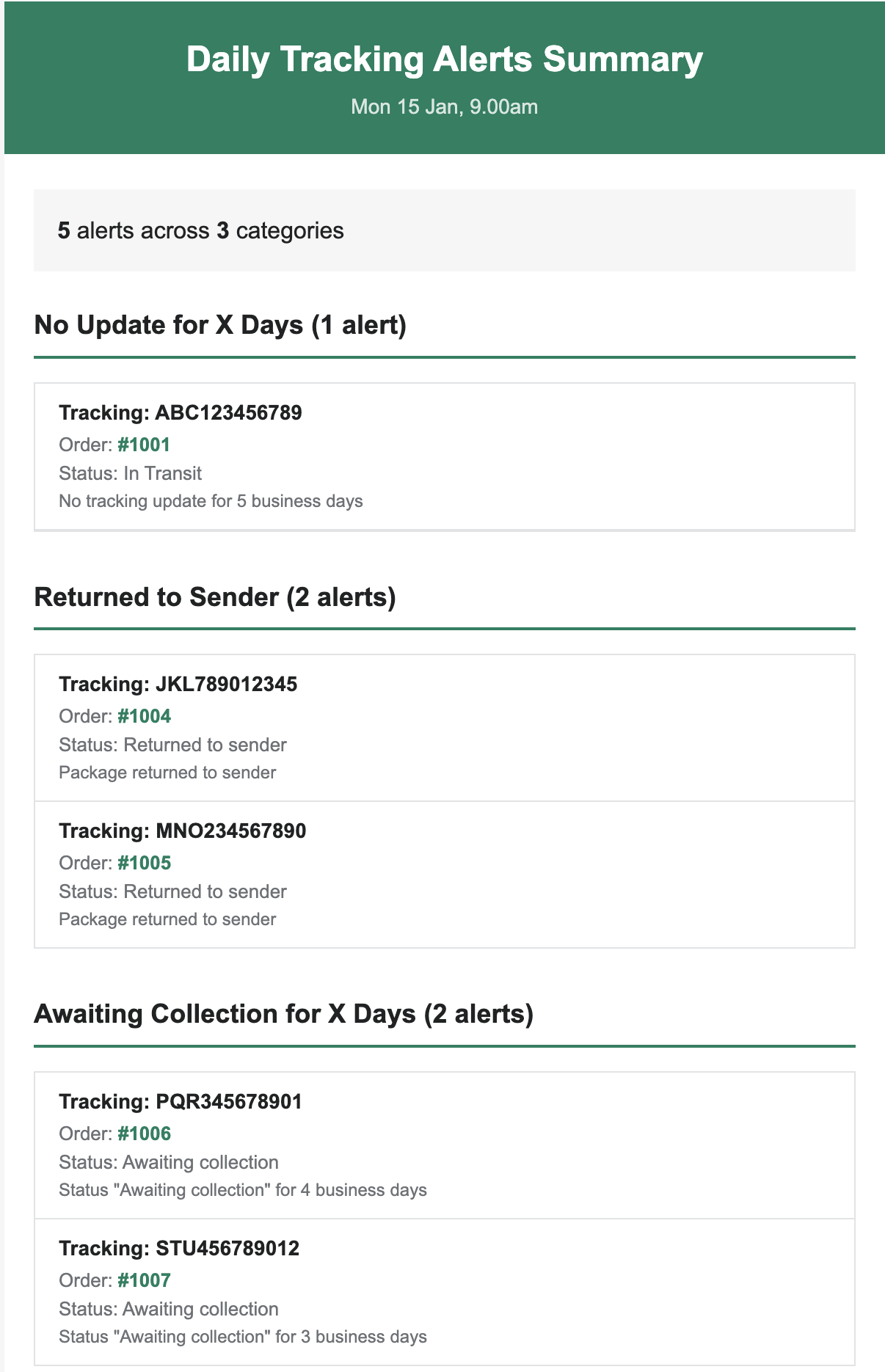
Email Delivery: To ensure you receive email notifications, please add
tracking-notifications@kivaro.io to your safe sender list or contacts. This prevents emails from being filtered to spam.Email Frequency
- Daily Summaries: You’ll receive one email per day with all active alerts
- Automatic Updates: The summary includes all alerts that were active at the time of generation
- No Duplicates: Each alert appears once in the summary, even if multiple conditions are met
How Alerts Work
Alert Evaluation
The system automatically evaluates all shipments against your enabled alert rules:Continuous Monitoring
All active shipments are checked against alert rules throughout the day
Terminal Status Handling
Alerts stop evaluating once packages reach terminal statuses (Delivered, Cancelled, etc.)
Business Day Calculation
Time-based alerts use business days, excluding weekends and holidays
Timezone Aware
All date calculations use your shop’s configured timezone
Alert Lifecycle
- Evaluation: System checks shipments against enabled rules
- Trigger: When conditions are met, an alert is created
- Notification: Alert appears in dashboard and email summary
- Resolution: Alert automatically resolves when conditions are no longer met
- History: Resolved alerts are maintained for reference
Auto-Resolution
Alerts automatically resolve when:- The triggering condition is no longer met (e.g., package receives an update)
- Package reaches a terminal status (Delivered, Cancelled, etc.)
- Status changes resolve the issue (e.g., “Awaiting collection” changes to “In transit”)
Viewing Alerts
Birds-Eye View Dashboard
Access the Alerts dashboard to get complete visibility into all shipment issues: Navigation Path:- Open the app in your Shopify admin
- Click Alerts in the left navigation menu (or go to
/app/alerts)
- Complete Overview: See all active alerts across your entire operation in one place
- Prioritized Actions: Quickly identify which alerts require Australia Post contact vs. customer outreach
- Categorized View: Alerts grouped by type make it easy to batch similar actions
- Quick Navigation: Jump directly to order details or tracking information
- Filtering Options: Filter by alert type or status to focus on specific issues
- Settings Access: Click “Alert Settings” button in the top-right to configure alerts
Daily Email Summary
Your daily email summary provides a complete birds-eye view without logging into the app:- Morning Briefing: Review all issues at the start of each day
- Categorized Alerts: See alerts grouped by type (No Update, Returned to Sender, etc.)
- Action Planning: Use the summary to plan your day—which packages need Australia Post contact, which need customer outreach
- Complete Details: Each alert includes everything you need: tracking number, order, status, and description
Alert Information
Each alert provides all the information you need to take action:- Tracking Number: Use this when contacting Australia Post customer service
- Order Number: Direct link to Shopify order for customer context
- Current Status: Understand the current state of the shipment
- Trigger Reason: Know exactly why the alert was created
- Suggested Action: Clear guidance on whether to contact Australia Post, customer, or investigate
- Timeline: Complete tracking event history to understand what happened
Best Practices
Maximizing Business Value
Complete Visibility
Enable All Critical Alerts: Returned to Sender, Article Damaged, Cannot Be DeliveredGet a complete birds-eye view of all issues requiring immediate intervention.
Proactive Intervention
Set Appropriate Thresholds: No Update, Awaiting Collection alertsKnow exactly when to contact Australia Post or customers before problems escalate.
Daily Monitoring
Enable Email Summaries: Receive daily categorized alertsReview all issues in one place each morning to prioritize your day.
Team Coordination
Share Email Access: Add 1-3 team members to email notificationsEnsure customer service and operations teams stay informed.
Recommended Alert Configuration
Essential Alerts
Must-Have: Returned to Sender, Article Damaged, Cannot Be DeliveredThese alerts catch critical issues that require immediate Australia Post contact or customer outreach.
Time-Based Alerts
Recommended: No Update for X Days, Awaiting Collection for X DaysSet thresholds based on your typical delivery times to know when intervention is needed.
Preventive Alerts
Optional: Label Not Lodged, Possible DelayHelp catch operational issues and delays before they become customer problems.
Email Setup
Always Enable: Email notifications with 1-3 recipient addressesEnsures you never miss critical alerts requiring Australia Post contact.
Threshold Guidelines
When setting business day thresholds, consider when you want to be notified to contact Australia Post or customers:-
No Update for X Days:
- Domestic: 3-5 business days (contact Australia Post to investigate)
- International: 7-10 business days (longer transit times are normal)
- Business Value: Catch lost packages early before customers notice
-
Awaiting Collection for X Days:
- Standard: 3-5 business days (contact customer before return)
- Business Value: Prevent returns and reshipment costs
-
Label Not Lodged for X Days:
- Standard: 1-2 business days (verify operational process)
- Business Value: Catch unused labels and operational issues early
Email Recipient Management
- Primary Contact: Add your main operations email
- Backup Contact: Include a secondary email for redundancy
- Team Distribution: Share with team members who handle customer service
- Limit: Maximum of 3 email addresses per shop
Troubleshooting
Common Issues
Not Receiving Email Alerts
Not Receiving Email Alerts
Problem: Email notifications are enabled but not receiving emailsSolutions:
- Check spam/junk folder for emails from
tracking-notifications@kivaro.io - Add
tracking-notifications@kivaro.ioto your safe sender list - Verify email addresses are correctly entered (comma-separated)
- Check that email notifications are enabled in settings
- Ensure you have active alerts (no emails sent if no alerts exist)
Alerts Not Triggering
Alerts Not Triggering
Problem: Expected alerts are not being createdSolutions:
- Verify the alert type is enabled in Alert Settings
- Check that the shipment hasn’t reached a terminal status
- Confirm the threshold (for time-based alerts) hasn’t been exceeded
- Review the tracking status to ensure it matches alert conditions
- Allow time for the system to evaluate (evaluations run throughout the day)
Too Many Alerts
Too Many Alerts
Problem: Receiving too many alertsSolutions:
- Adjust business day thresholds to higher values
- Disable alert types that aren’t relevant to your business
- Review and resolve underlying issues causing repeated alerts
- Consider if certain alert types are too sensitive for your workflow
Alerts Not Resolving
Alerts Not Resolving
Problem: Alerts remain active after issues are resolvedSolutions:
- Alerts auto-resolve when conditions are no longer met
- Allow time for the system to re-evaluate (runs throughout the day)
- Check that tracking status has actually changed
- Verify the package hasn’t reached a terminal status that prevents updates
Plan Availability
Available Plans:- ✅ Growth Plan: Full access to Tracking Alerts
- ✅ Scale Plan: Full access to Tracking Alerts
- ❌ Starter Plan: Not available (upgrade required)
Integration with Tracking Page
Tracking Alerts work seamlessly with the Tracking Page to give you complete operational visibility:- Unified Operations View: See both alerts and all tracking information in one place
- Quick Investigation: Jump from alerts to detailed tracking timelines to understand issues
- Complete Context: When an alert triggers, view the full tracking history to understand what happened
- Proactive Monitoring: Combine alerts (what needs attention) with tracking page (complete shipment status) for full visibility
- Efficient Workflow: Use alerts to identify issues, then use tracking page to investigate details before contacting Australia Post or customers
Support
Need help with Tracking Alerts?Book Free Consultation
Schedule a one-on-one session with our shipping experts
Contact Support
Get help with setup, configuration, or troubleshooting
Related Features
- Tracking Page - Monitor all shipments in real-time
- Getting Started Guide - Complete setup instructions
- Advanced Features - Explore additional capabilities