
Product & Variant Dimensions
Before you start (required)
To use this feature, first turn on Use product or variant dimensions for package determination in the app settings.This setting must be enabled before product/variant dimension metafields are used for package determination.
This feature is available for paid plan users only.
How to turn it on
1
Open app settings
In the app, go to Settings under Packages tab.
2
Enable the dimensions option
Turn on Use product or variant dimensions for package determination and save.
About package dimension metafields
The app reads product and variant dimension metafields (length, width, and height) from Shopify only after this setting is enabled. If the setting is off, those metafield values are not used during package determination. Accurate dimensions (length, width, and height) help the app make better packaging decisions before you buy labels.Enter all dimension values in centimeters (cm) to ensure accurate package selection and postage calculations.
- Reduce packaging waste
- Avoid paying extra postage for oversized or poorly matched parcels
- Lower the chance of manual rework at dispatch time
- Ship unusual or bulky products with more confidence
Why this matters for your store
This feature is not only for everyday parcels. It is especially useful if you sell:- Large products
- Long or awkwardly shaped products
- Items that vary a lot by variant size
How the app uses product and variant dimensions
The app reads dimensions from Shopify metafields and uses them during shipment preparation to improve package matching.Priority used by the app
- Variant dimensions first (best when variants have different sizes)
- Product dimensions as fallback (used when variant dimensions are not set)
Where to set dimensions in Shopify Admin
You can set values in two ways:- Individual editing (single product or single variant)
- Bulk editing (many products at once)
Option 1: Set product-level dimensions
Use this when all variants share similar physical size.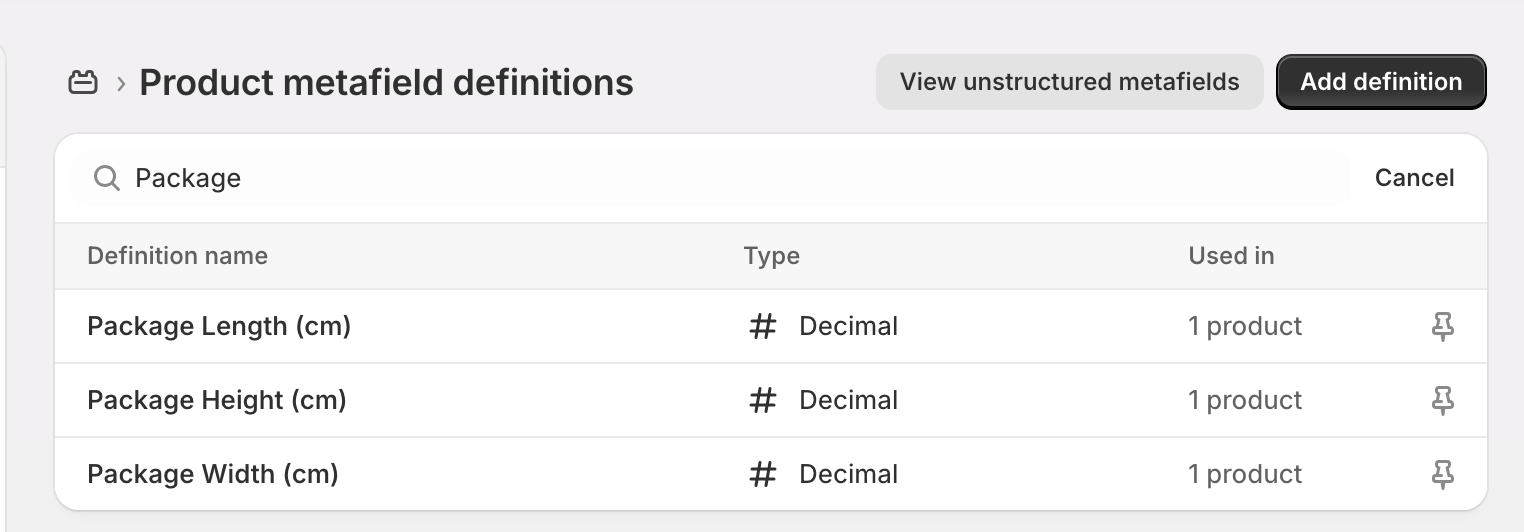
1
Open a product in Shopify Admin
Go to Products and open the product you want to update.
2
Find Metafields
Scroll to the Metafields section.
3
Enter dimensions
Fill in the dimension fields (length, width, height) in centimeters (cm).
4
Save the product
Click Save so the app can use these values as the product fallback.
Option 2: Set variant-level dimensions
Use this when variant sizes differ (for example Small vs XL, or different lengths).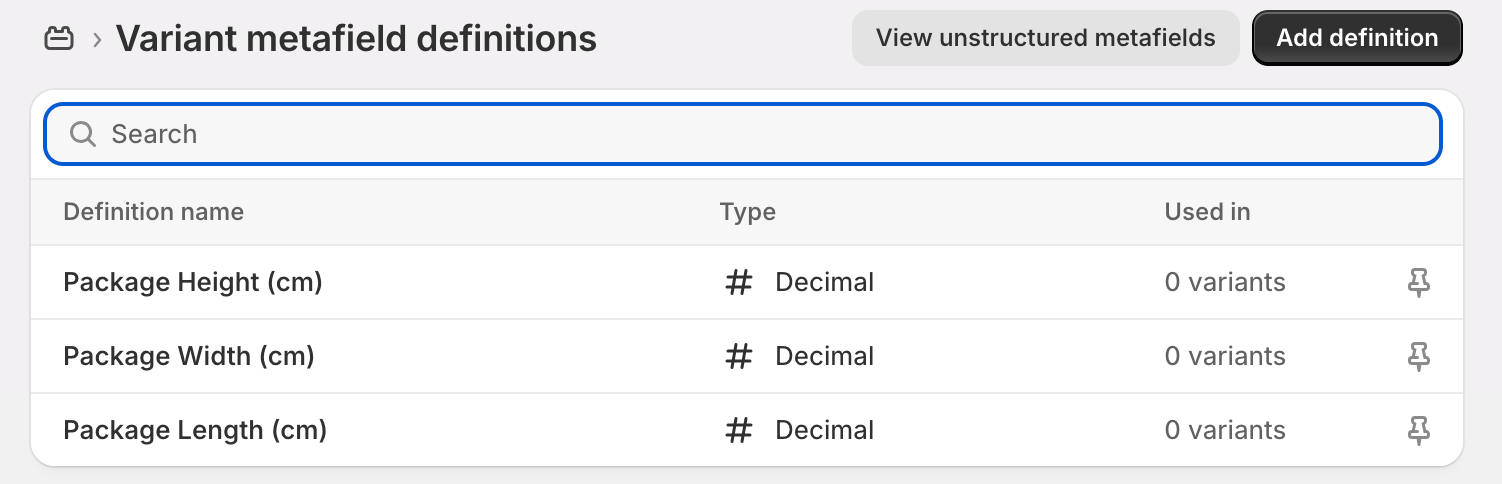
1
Open a product and select a variant
In Shopify Admin, open the product and choose a variant to edit.
2
Find variant Metafields
Scroll to the variant’s Metafields section.
3
Enter variant dimensions
Add length, width, and height in centimeters (cm) for that specific variant.
4
Save
Click Save. Repeat for other variants that need unique dimensions.
Option 3: Bulk update product dimensions
Use this when you need to update many products quickly.
1
Select products
Go to Products, select multiple items, then choose Bulk edit.
2
Add metafield columns
Add the relevant dimension metafield columns to the bulk editor view.
3
Fill values
Enter dimensions in centimeters (cm) across rows for all selected products.
4
Save changes
Save your bulk edits so dimensions are available to the app.
Best practices
- Use centimeters (cm) for all dimension values
- Set variant-level values for size-dependent products
- Use product-level values as a baseline fallback
- Review dimensions for top-selling and large/irregular items first
Merchant impact
After dimensions are set, you can expect better package fit decisions and more predictable postage outcomes. For many merchants, this means:- Less void space and filler
- Fewer mismatched packages
- Better cost control on shipping
- A smoother fulfillment workflow for non-standard product shapes