
Overview
The Purchase label page lets you buy an Australia Post MyPost Business label outside the main Ready to ship workflow. Use it when you need to:- Buy another label for an order you already fulfilled (replacement, damaged parcel, wrong service)
- Create a return label by swapping from/to addresses
- Purchase a standalone domestic label that is not linked to a Shopify order
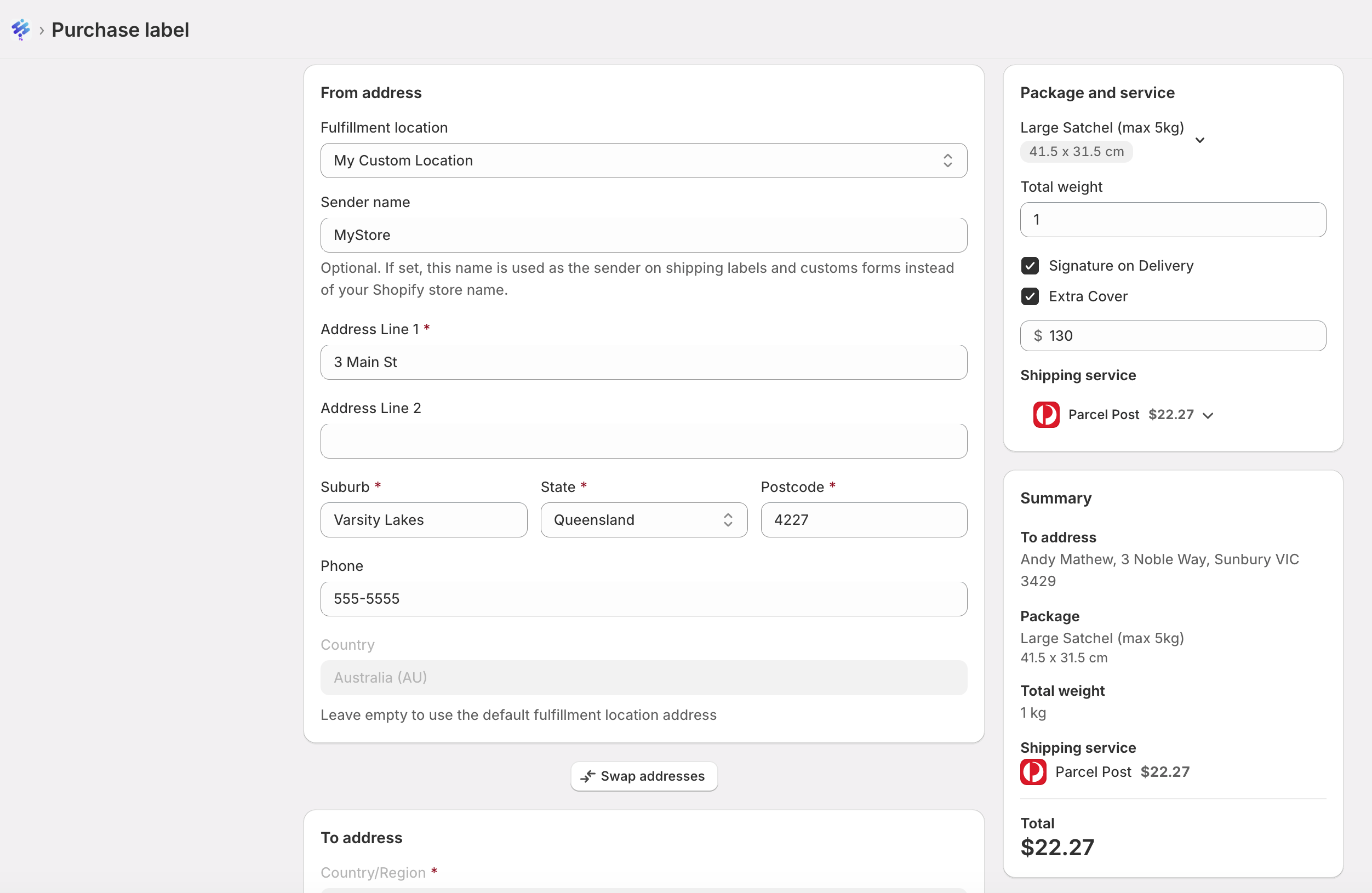
Ways to open Purchase label
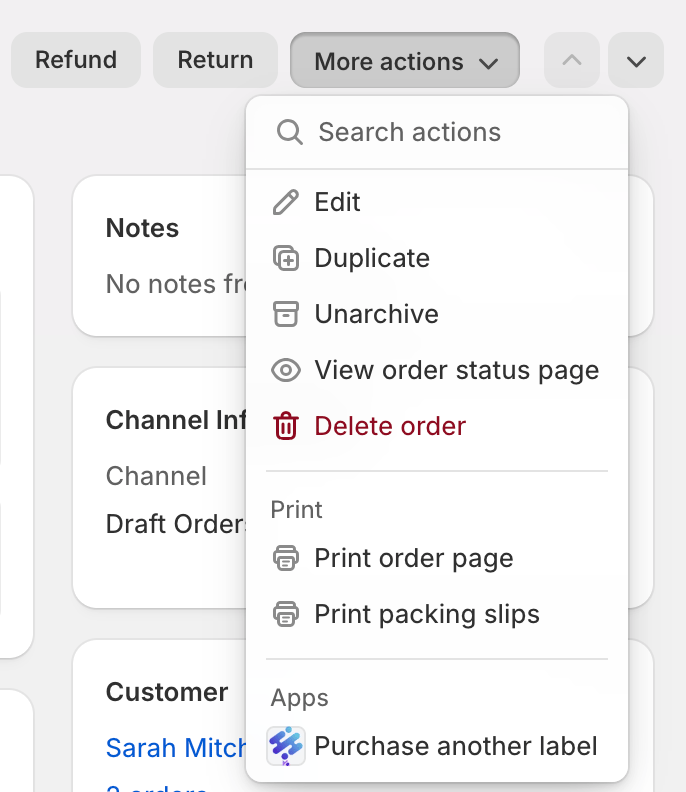
1. From a Shopify order (recommended for replacements)
- Open the order in Shopify admin → Orders
- Click More actions
- Choose Purchase another label
2. From Transactions
In , open Transactions and choose Purchase label.3. Direct app page
Open Purchase label from the app navigation / shipping section (Purchase label page title in the app).
What you can configure
From address
Choose the fulfilment location address your parcel ships from
To address
Enter or edit the delivery address (standalone labels are Australia-only)
Swap addresses
Quickly swap from/to for return labels
Package and service
Pick a package, weight, Parcel Post or Express Post, and extras
Custom dimensions
Add one-off box sizes or save a custom package for later
Add tracking to order
When linked to a Shopify order, append the new tracking number
Buy a label step by step
1
Open Purchase label
Start from More actions → Purchase another label on an order, or open Purchase label in the app.
2
Confirm addresses
Check From (your location) and To (customer). Use Swap addresses for returns. Standalone labels must be domestic (Australia).
3
Choose package and weight
Select a flat-rate or custom package, enter total weight, and set postage features / transit cover if needed.
4
Optional: custom dimensions
In the package picker, choose Add custom package / one-off dimensions. Enter length, width, and height in centimetres. Optionally save the size as a reusable custom package.
5
Select shipping service
Wait for the quote, then choose Parcel Post or Express Post (and any other available options).
6
Linked order options
If the label is linked to a Shopify order, you can tick Add tracking to Shopify order and optionally Send tracking details to customer(s). Tracking is added alongside any existing tracking — it does not replace it.
7
Purchase
Confirm the postage cost and purchase. Download or print the label when it is ready.
Custom dimensions on Purchase label
Purchase label uses the same custom dimensions experience as the main Shipping Labels page:- Enter Length, Width, and Height in cm
- Apply as a one-off package for this label only, or
- Save as custom package so it appears in your package list next time
Linked order vs standalone
Common use cases
Replacement after damage or loss
Replacement after damage or loss
Open the original order → Purchase another label → buy a new service/package → add tracking to the same order so the customer sees the replacement consignment.
Return label
Return label
Open Purchase label, set the customer address as From (or use swap), and your warehouse as To, then buy the return postage.
Second parcel for an already fulfilled order
Second parcel for an already fulfilled order
Useful when you need to send an extra item after the original fulfilment was already marked complete in Shopify.
Non-order shipment
Non-order shipment
Send a sample, warranty part, or marketplace parcel that is not tied to a Shopify order using a standalone domestic label.
Tips
- Prefer Purchase another label from the order admin when you need tracking to stay attached to that order history.
- Recipient needs a phone number or email for MyPost Business validation.
- If postage succeeds but Shopify tracking update fails, the label is still purchased — you can add tracking manually or retry from support guidance.
- Re-download labels from Transactions for up to 30 days after purchase.
Troubleshooting
Standalone labels are domestic only
Standalone labels are domestic only
International adhoc labels are not supported on this page. Use the main Shipping Labels / international workflow for overseas orders.
Label purchased, but tracking could not be updated
Label purchased, but tracking could not be updated
Postage was charged successfully. Open the Shopify order and add the tracking number manually if needed, or contact .
Quote will not load
Quote will not load
Complete from/to address, package, and weight first. Fix any validation messages under those fields, then wait for the service quote.
Need a refund
Need a refund
Refund unused labels in MyPost Business Transactions. The app cannot cancel MyPost postage via API. See Advanced features.
Related guides
- Fulfill later & Labels purchased — buy labels in the main workflow without fulfilling yet
- Ship together — one label for multiple orders to the same address
- Bulk operations — custom dimensions and bulk label buying
- Split shipments — split one order into multiple fulfilment orders
Need Help?
Book Free Consultation
Schedule a one-on-one session with our shipping experts
Contact Support
Get help with Purchase label, replacements, or returns