
Overview
Fulfill later (also called Skip fulfilling orders) lets you buy MyPost Business shipping labels without marking the Shopify orders as fulfilled yet. Labels stay in the Labels purchased tab until you are ready to pack. When you mark them as fulfilled, tracking is added to each Shopify order and you can optionally email the customer. This is designed for busy warehouses that want to:- Buy postage in a morning batch
- Print labels later
- Fulfil in Shopify only when parcels actually leave the bench
Plan availability
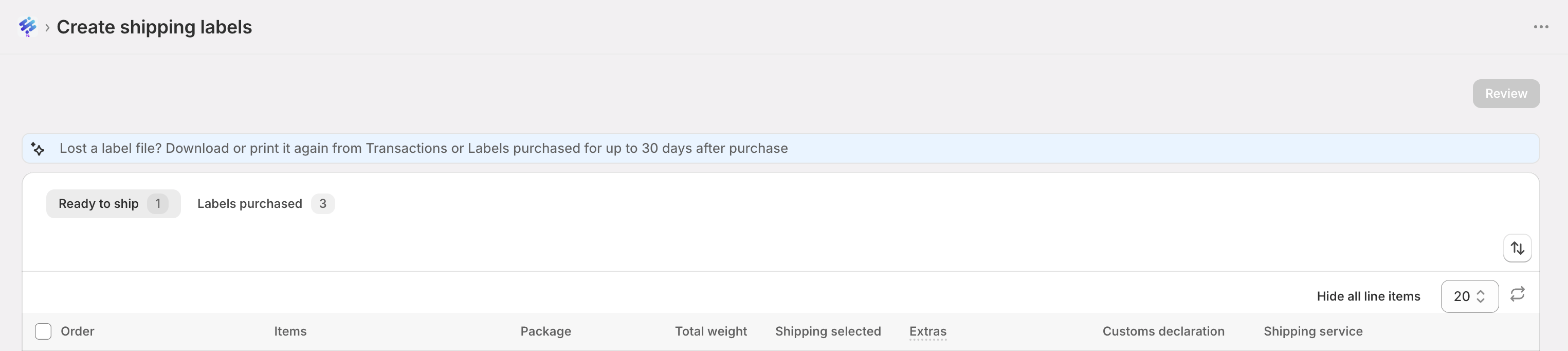
How the two tabs work
When you buy with fulfill later:
- Orders move from Ready to ship into Labels purchased
- Shopify fulfilment status does not change yet
- Reserved quantities stay out of Ready to ship so you do not buy a duplicate label by mistake
Buy labels without fulfilling
1
Select orders
On Shipping Labels → Ready to ship, select the orders you want to purchase.
2
Review labels
Click Review label(s) and confirm package, weight, service, and postage features as usual.
3
Turn on Skip fulfilling orders
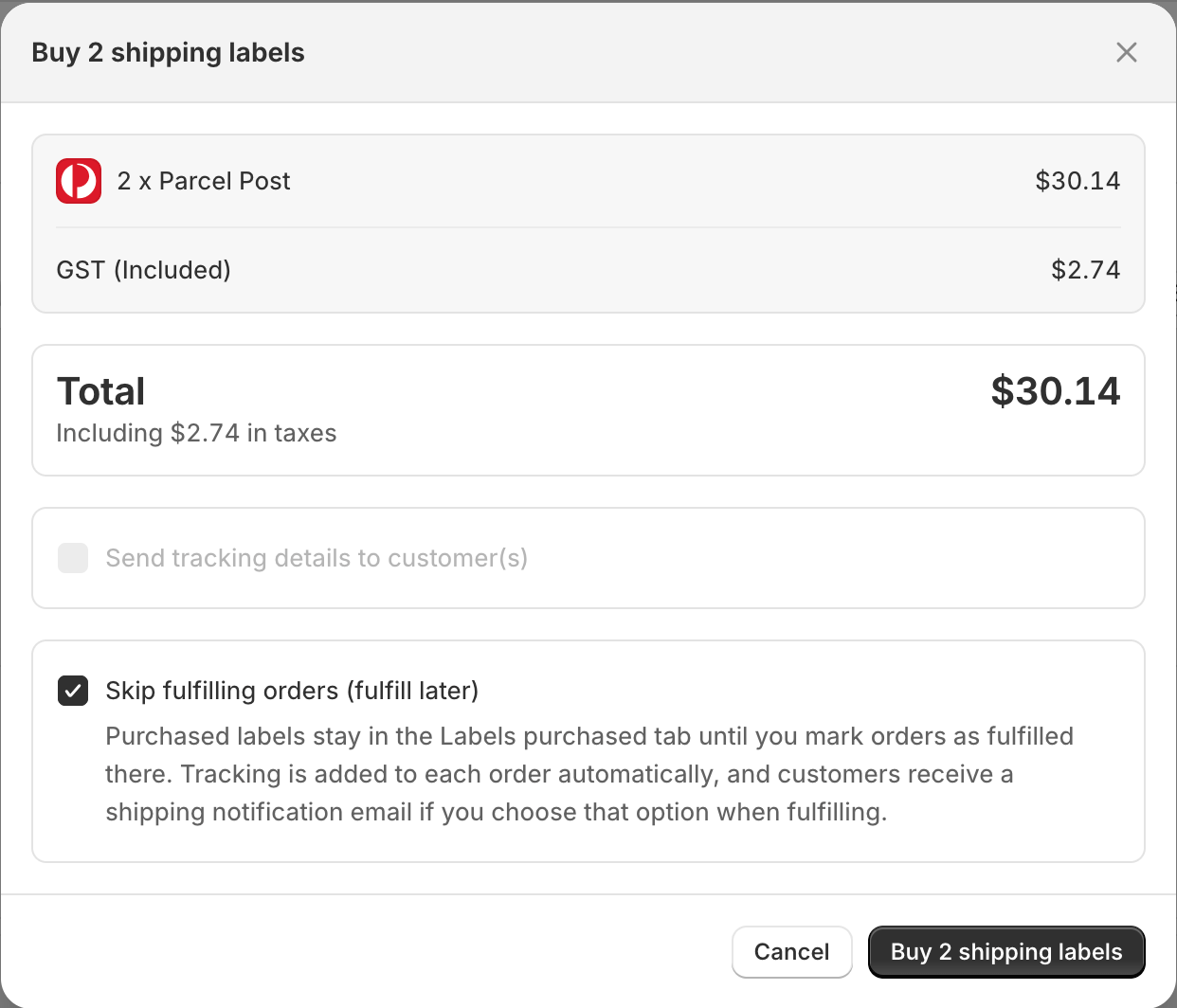
In the buy postage confirmation, tick Skip fulfilling orders (fulfill later).
4
Note about customer emails
While skip is on, Send tracking details to customer(s) is turned off. Customers are notified later, when you mark orders as fulfilled (if you choose that option).
5
Purchase
Complete the purchase. You will see a message that labels are ready to print and that orders have not been fulfilled yet.
6
Find them in Labels purchased
Open the Labels purchased tab. Your new labels appear with tracking, postage, carrier reference, and download/print actions.
Mark orders as fulfilled
When parcels are packed and ready to hand to Australia Post (or your courier pickup):1
Open Labels purchased
Go to Shipping Labels → Labels purchased.
2
Select labels
Select one or more rows.
3
Mark as fulfilled
Click Mark as fulfilled (page action or bulk action).
4
Confirm and notify
Confirm that Shopify should fulfil those orders with the purchased tracking numbers. Optionally tick Send tracking details to customer(s).
- Tracking is added to the Shopify order(s)
- Rows leave Labels purchased
- Those fulfilment quantities no longer sit in your deferred queue
Cancel a purchased label (workflow reset)
Sometimes you buy a label too early — wrong service, customer changed address, or you need to re-pack. Use Cancel label on Labels purchased.Important: cancel in the app is not a MyPost refund
Cancelling in :- Removes the label from Labels purchased
- Returns the order/quantity to Ready to ship
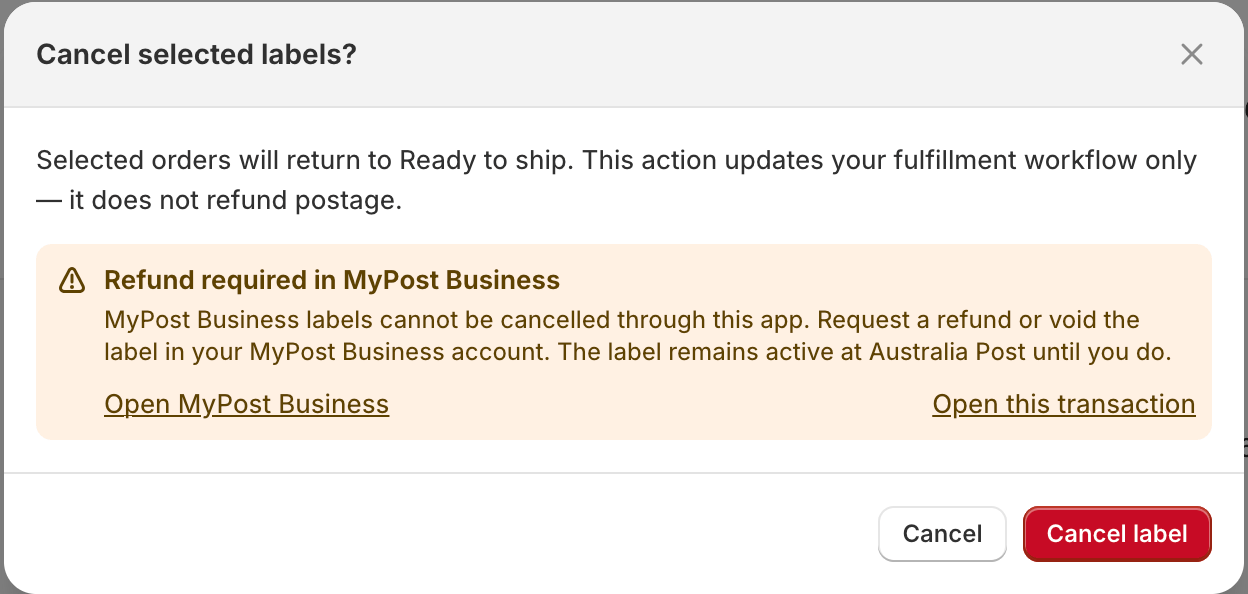
- Does not refund postage with Australia Post
How to cancel
1
Open Labels purchased
Select the label row, or use the cancel (delete) icon next to download/print.
2
Read the confirmation
Confirm that the order will return to Ready to ship, and that this does not refund postage.
3
Follow the MyPost warning
For MyPost Business labels, the modal warns you to request a refund in MyPost Business. Use Open MyPost Business or Open this transaction when shown.
4
Confirm Cancel label
After cancel, the order is back on Ready to ship so you can buy a new label if needed.
Refund in MyPost Business
- Log in to MyPost Business
- Open Transactions and find the label/transaction
- Request a Refund for the unused label
- Successful refunds usually return to your card or PayPal within 5–10 business days
Partial fulfilments
Fulfill later works with partial quantities:- You can buy a label for some items now and leave the rest on Ready to ship
- Shopify remaining quantities stay correct until you mark the purchased portion as fulfilled
- Cancel returns only that reserved quantity to Ready to ship
Download and print purchased labels
From Labels purchased you can:- Copy the tracking number
- Open Australia Post tracking
- Open the MyPost Business transaction reference
- Download or print the label PDF
Tips for merchants
- Use fulfill later for batch label buying before your packing shift starts.
- Turn customer tracking emails on at Mark as fulfilled, so customers are not notified before the parcel leaves.
- Do not leave unused labels sitting unpaid for refund — cancel in-app and refund in MyPost when postage will not be used.
- Orders in Labels purchased cannot be selected for Ship together until you cancel or fulfil them.
Troubleshooting
I cannot see Labels purchased or Skip fulfilling orders
I cannot see Labels purchased or Skip fulfilling orders
Your store needs Growth plan or above. Upgrade in the app billing settings, then refresh Shipping Labels.
Order disappeared from Ready to ship but is not fulfilled in Shopify
Order disappeared from Ready to ship but is not fulfilled in Shopify
Check Labels purchased. It is waiting for Mark as fulfilled.
Cancel did not refund my postage
Cancel did not refund my postage
That is expected. Cancel only resets your Shopify workflow. Refund unused labels in MyPost Business.
Customer did not get a tracking email
Customer did not get a tracking email
Tracking emails are sent when you mark as fulfilled and choose Send tracking details to customer(s). They are not sent at purchase time when fulfill later is enabled.
Labels show as Expired
Labels show as Expired
Carrier reprint windows are limited. Try download again within 30 days from Labels purchased or Transactions. After that, the stored copy may no longer be available.
Need Help?
Book Free Consultation
Schedule a one-on-one session with our shipping experts
Contact Support
Get help with fulfill later, Labels purchased, or cancellations