> ## Documentation Index
> Fetch the complete documentation index at: https://help.kivaro.io/llms.txt
> Use this file to discover all available pages before exploring further.
# Shipping Rules Configuration
> Learn how to create and manage automated shipping rules to streamline your fulfillment process
export const appName = "AusPost MyPost Business";
## Overview
Shipping Rules allow you to automate package selection, shipping service, signature requirements, Extra Cover (transit cover), and—for international orders—customs fields (importer reference number, sender customs reference, certificate number, licence number, landed costs payment), based on specific order conditions. This helps reduce manual work and ensures consistent shipping decisions across your store. Each rule can have up to 10 conditions, combined with AND or OR. Rules are evaluated in the order they appear; the **first matching rule’s actions** are applied.
## Creating Your First Rule
Navigate to the {appName} app and click on **Shipping Rules**
in the sidebar
Click **Add Rule** to create your first automated shipping rule
Give your rule a descriptive name (e.g., "Heavy Items - Express Post")
Define when this rule should apply using one or more conditions
Specify what should happen when the conditions are met (package, service, signature, Extra Cover, or international customs fields)
Toggle the rule status to **Enabled** and save
## Rule Conditions
You can create rules based on various order attributes. Each rule can have **up to 10 conditions**. When you add more than one condition, you choose how to combine them: **AND** (all must match) or **OR** (at least one must match). The first condition has no operator; from the second condition onward, you select "and" or "or" to combine with the previous result.
**Available condition types:**
| Condition | Summary |
| ---------------------------- | ------------------------------------------------- |
| Order Weight | Total fulfilling line-item weight in grams |
| Order Value | Total order value in your store currency |
| Customer State | Shipping address state/territory (Australia) |
| Delivery Method | Checkout shipping method selected by the customer |
| Destination Country | Shipping address country |
| Discount Code | Discount code(s) applied at checkout |
| Fulfillment Order Line Items | Product title, SKU, variant, and quantity |
### Order Weight
* **Operators**: Less than or equal to, Less than, Greater than, Greater than or equal to, Equals
* **Unit**: Weight is entered in **grams** (e.g. enter 2000 for 2 kg, 10000 for 10 kg)
* **Example:** Create a rule for lightweight items (2000 g or less) or heavy items (over 10000 g) to automatically select appropriate packaging and shipping services.
### Order Value
* **Operators**: Less than or equal to, Less than, Greater than, Greater than or equal to, Equals
* **Currency**: Values are in your store’s currency (typically AUD)
* **Use**: For low-value orders or high-value orders requiring signature or extra cover
### Customer State
* **Operator**: Equals only (exact match)
* **Values**: Australian states and territories (ACT, NSW, NT, QLD, SA, TAS, VIC, WA)
* **Use**: Target specific regions for different shipping preferences or restrictions. The state is taken from the order’s shipping address.
### Delivery Method
* **Operator**: Equals only
* **Availability**: This condition appears only when your store has **delivery methods** configured in Shopify (e.g. from shipping profiles). If you don’t see it, set up delivery methods in Shopify first.
* **Values**: The list shows your Shopify delivery method names (e.g. Standard Shipping, Express Shipping, Click & Collect, Local Delivery). You can also select **Other** and optionally enter a **custom name** (max 100 characters) so the rule matches orders whose selected method isn’t in the list—e.g. when the customer chose a method that doesn’t appear by name in the app.
* **Matching**: The app compares the order’s delivery method (presented name or name looked up by ID) to the condition value.
**Example:** Create rules that automatically apply different shipping services or package options based on whether customers selected Click & Collect, Express Shipping, or other delivery methods.
### Destination Country
* **Operators**: **Equals** (match a specific country) or **Not equals** (exclude a specific country)
* **Values**: Country list (Australia, New Zealand, US, UK, Canada, etc.). The country is taken from the order’s shipping address.
* **Use**: Apply different rules for domestic vs international orders (e.g. Destination country **not equals** Australia for international).
**Example:** Create a rule that applies Express Post for all domestic orders (Australia) and standard international shipping for overseas orders.
### Discount Code
Target orders based on the discount code(s) the customer applied at checkout.
* **Operators**: **Equals** (the code is present on the order) or **Not equals** (the code is not present on the order)
* **Value**: Enter one discount code as free text (max **255** characters, matching Shopify’s limit)
* **Matching**: **Case-sensitive** — enter the code exactly as customers type it at checkout (e.g. `VIP10` and `vip10` are treated as different codes)
* **Multiple codes on an order**: If a customer used more than one discount code, all codes are checked. **Equals** matches when your entered code appears anywhere in that list; **Not equals** matches when your entered code does not appear in the list.
* **Orders with no discount codes**: If the order has no discount codes applied, this condition does **not** match (neither **Equals** nor **Not equals** will pass).
When you add a Discount Code condition, the app shows a reminder that matching is case sensitive. Double-check the exact spelling and capitalization of your code in Shopify **Discounts** before creating the rule.
**Use cases:**
* **Promotional shipping**: Apply Express Post or signature for orders using a VIP or loyalty code
* **Exclude promotional orders**: Use **Not equals** to skip a rule for orders that used a specific free-shipping or staff discount code
* **Campaign-specific packaging**: Match a launch or sale code to use a particular package or service
**Example:** Create a rule named "VIP10 - Express & Signature" that:
* **Condition**: Discount Code **equals** `VIP10`
* **Actions**: Use Express Post service; require signature on delivery
### Fulfillment Order Line Items
Match orders based on specific products and quantities in the fulfillment order. This powerful condition allows you to create rules that trigger based on what items are being shipped.
This condition is most useful for targeting your most common and frequent orders.
By creating rules for your best-selling products or frequently ordered items, you can
automate shipping decisions for the majority of your orders, saving time and ensuring
consistency across your fulfillment process.
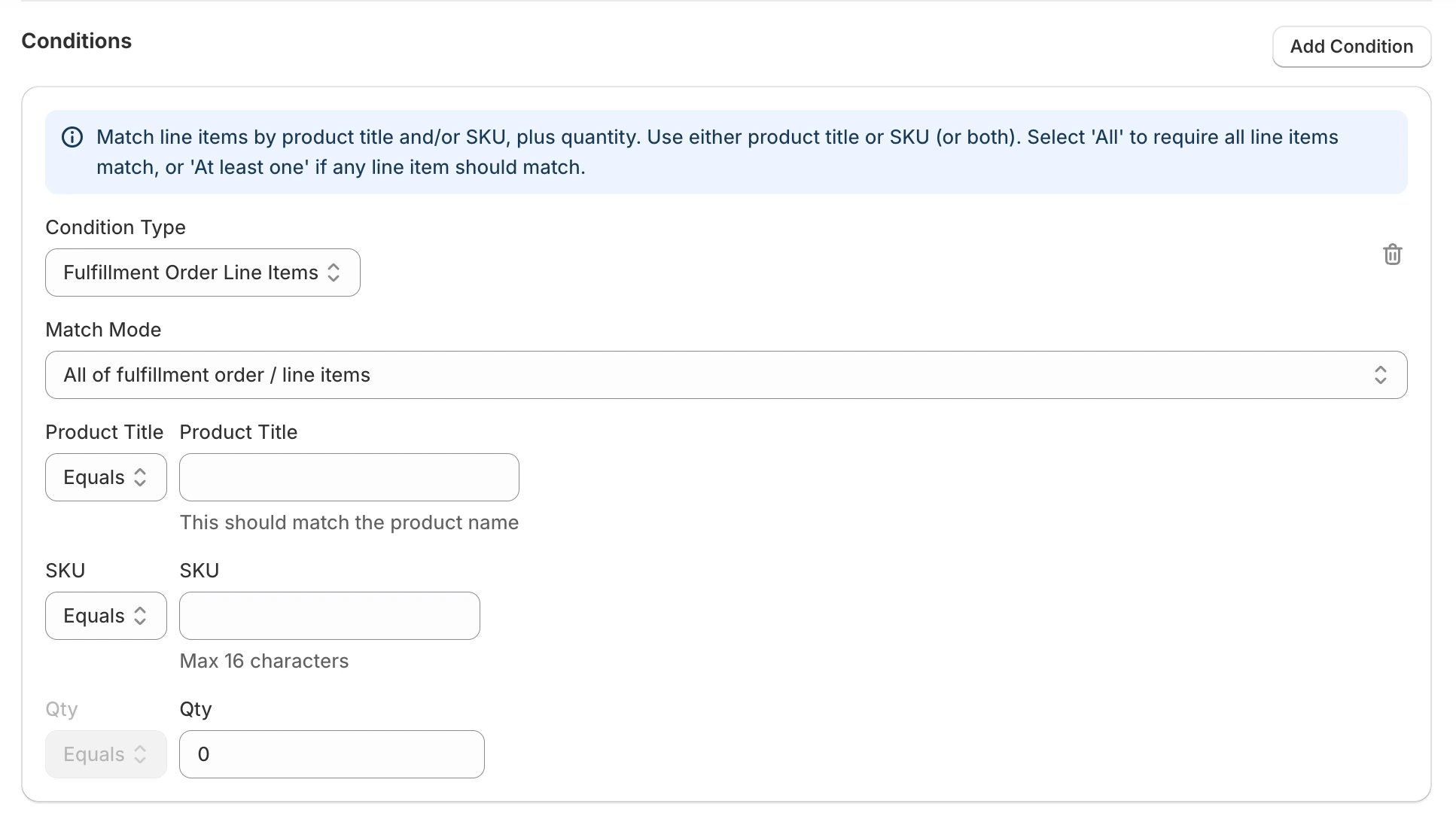 **Configuration Options:**
* **Match Mode:**
* **All of fulfillment order / line items**: All items in the order must match your criteria
* **At least one of fulfillment order / line items**: Any item in the order can match your criteria
* **Product Title:**
* **Operators**: Equals, Not equals, Starts with, Ends with, Contains (all case-insensitive)
* Enter the product name as it appears in your Shopify store (or a part of it when using Starts with, Ends with, or Contains)
* **SKU:**
* **Operators**: Equals, Not equals, Starts with, Ends with, Contains (all case-insensitive)
* Enter the SKU as it appears on your product variant in Shopify (max 40 characters)
* You must enter at least one of product title, SKU, or variant for the condition to match
* **Variant:**
* Match line items by **variant title** (the option values shown for the product, e.g. "Small / Blue", "500g").
* **Operators**: Same as product title and SKU—**Equals**, **Not equals**, **Starts with**, **Ends with**, **Contains** (all case-insensitive).
* Enter the variant title as it appears in Shopify (e.g. size, color, or other option). Max 255 characters.
* You must enter at least one of product title, SKU, or variant for the condition to match.
* **Quantity:**
* **Any**: The line item matches regardless of how many units are being fulfilled (useful when you only care that the product is in the order)
* **Equals**: The fulfilling quantity must equal the number you enter (number of units being fulfilled for that product)
**Benefits:**
* **Product-specific shipping**: Apply different shipping rules for specific products (e.g., fragile items, oversized products, hazardous materials)
* **SKU-based rules**: Match by variant SKU when product titles vary or you use codes (e.g., "Fragile-001", "BULK-10")
* **Variant-based rules**: Match by variant title (e.g. "Large", "Blue", "500g") when you want to target specific sizes, colors, or options without using SKU
* **Quantity-based rules**: Handle bulk orders differently from single-item orders
* **Special handling**: Automatically apply express shipping or special packaging for certain products
* **Cost optimization**: Use standard shipping for low-value items and express for high-value products
**Example Use Cases:**
1. **Fragile Items Rule**: If any order contains "Glass Vase" with quantity 1 or more, automatically use Express Post and require signature
2. **SKU-based Rule**: If any order contains a line item with SKU equals "Fragile-001", use Express Post and require signature
3. **Variant-based Rule**: If any order contains a line item with variant title equals "Large" (or "Small / Blue"), use a specific package or Express Post—useful when size or option determines packaging
4. **Bulk Orders Rule**: If all items in an order are "Bulk Pack" products with quantity 10 or more, use a large box package
5. **Exclude Products Rule**: If any order contains "Hazardous Material" products, use special handling and Express Post
6. **Premium Products Rule**: If any order contains "Premium Watch" products (or SKU "PREM-WATCH"), require signature and use Express Post
## Rule Actions
When conditions are met, you can automate one or more actions on the same rule:
**Available action types:**
| Action | Summary |
| -------------------------- | ------------------------------------------------------ |
| Package | Flat-rate satchel/box or custom package |
| Service | Parcel Post or Express Post |
| Signature | Signature on delivery required or not required |
| Extra Cover | Fixed transit cover amount ($100–$5,000) |
| Importer reference number | International customs importer reference |
| Customs reference | International sender customs reference |
| Customs certificate number | International customs certificate number |
| Customs licence number | International customs licence number |
| Landed costs payment | Who pays import duties, taxes, and fees at destination |
### Package Selection
* **Flat-rate packaging**: Choose specific Australia Post satchels or boxes
* **Custom packages**: Select from your defined custom packages
* **Default package**: Use your store's default package setting
### Signature Requirements
* **Required**: Automatically add signature on delivery for high-value items
* **Not Required**: Skip signature for standard deliveries
### Shipping Service
* **Parcel Post**: Standard delivery service (domestic or international, depending on the order’s destination)
* **Express Post**: Priority delivery service (domestic or international)
* For **international** orders, the app applies the corresponding Australia Post international product (standard or express) when you select Parcel Post or Express Post respectively. There is no separate “International” action—the same two services apply to both domestic and international orders.
### Extra Cover
* **Extra Cover** lets you set a fixed transit cover amount (in dollars) for orders that match the rule. Transit cover protects the value of shipped items against loss or damage while in transit with Australia Post.
* **Amount range**: You can enter any value from **$100** to **$5,000** (inclusive). Values outside this range are not allowed when saving the rule.
* **Signature when $500 or more**: If you set Extra Cover to **$500 or more**, the app automatically adds **signature on delivery** for those orders (Australia Post requirement). You do not need to add a separate Signature action.
* **Use cases**: Use this action when you want rule-based transit cover—for example, high-value orders get \$1,000 cover and signature, or orders containing certain products get a specific cover amount.
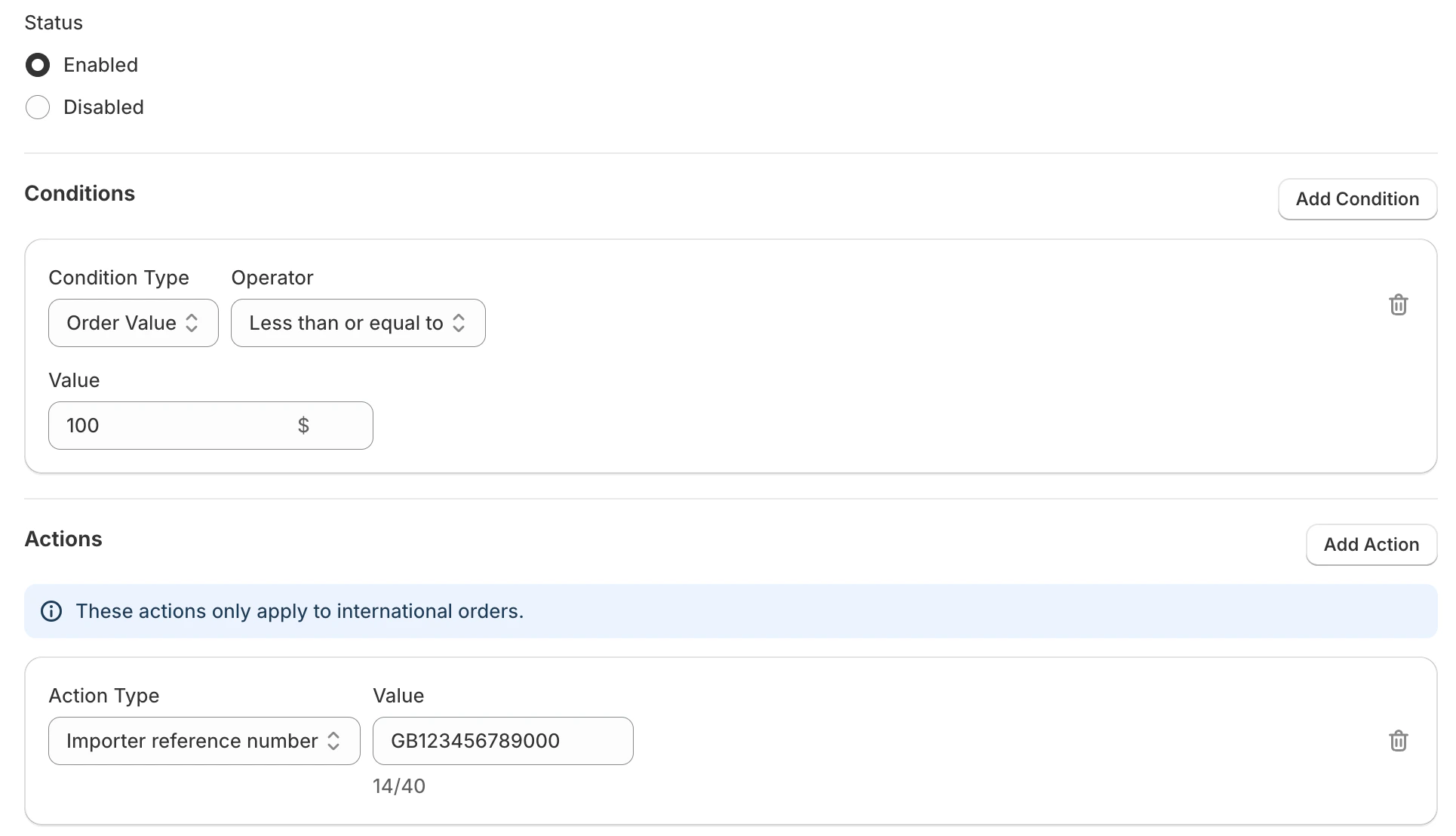
### Importer Reference Number (International)
* **Importer reference number** lets you set a customs importer reference (e.g. your company or client reference) for international shipments. When an order matches a rule with this action, the value is applied to the customs declaration when creating the international label.
* **Applicable to**: International orders only (e.g. use with a condition such as Destination country **not equals** Australia).
* **Maximum length**: 40 characters.
* **Use cases**: Use when you routinely ship to the same overseas buyer or use a fixed importer reference for certain destinations—no need to type it on each label.
**Configuration Options:**
* **Match Mode:**
* **All of fulfillment order / line items**: All items in the order must match your criteria
* **At least one of fulfillment order / line items**: Any item in the order can match your criteria
* **Product Title:**
* **Operators**: Equals, Not equals, Starts with, Ends with, Contains (all case-insensitive)
* Enter the product name as it appears in your Shopify store (or a part of it when using Starts with, Ends with, or Contains)
* **SKU:**
* **Operators**: Equals, Not equals, Starts with, Ends with, Contains (all case-insensitive)
* Enter the SKU as it appears on your product variant in Shopify (max 40 characters)
* You must enter at least one of product title, SKU, or variant for the condition to match
* **Variant:**
* Match line items by **variant title** (the option values shown for the product, e.g. "Small / Blue", "500g").
* **Operators**: Same as product title and SKU—**Equals**, **Not equals**, **Starts with**, **Ends with**, **Contains** (all case-insensitive).
* Enter the variant title as it appears in Shopify (e.g. size, color, or other option). Max 255 characters.
* You must enter at least one of product title, SKU, or variant for the condition to match.
* **Quantity:**
* **Any**: The line item matches regardless of how many units are being fulfilled (useful when you only care that the product is in the order)
* **Equals**: The fulfilling quantity must equal the number you enter (number of units being fulfilled for that product)
**Benefits:**
* **Product-specific shipping**: Apply different shipping rules for specific products (e.g., fragile items, oversized products, hazardous materials)
* **SKU-based rules**: Match by variant SKU when product titles vary or you use codes (e.g., "Fragile-001", "BULK-10")
* **Variant-based rules**: Match by variant title (e.g. "Large", "Blue", "500g") when you want to target specific sizes, colors, or options without using SKU
* **Quantity-based rules**: Handle bulk orders differently from single-item orders
* **Special handling**: Automatically apply express shipping or special packaging for certain products
* **Cost optimization**: Use standard shipping for low-value items and express for high-value products
**Example Use Cases:**
1. **Fragile Items Rule**: If any order contains "Glass Vase" with quantity 1 or more, automatically use Express Post and require signature
2. **SKU-based Rule**: If any order contains a line item with SKU equals "Fragile-001", use Express Post and require signature
3. **Variant-based Rule**: If any order contains a line item with variant title equals "Large" (or "Small / Blue"), use a specific package or Express Post—useful when size or option determines packaging
4. **Bulk Orders Rule**: If all items in an order are "Bulk Pack" products with quantity 10 or more, use a large box package
5. **Exclude Products Rule**: If any order contains "Hazardous Material" products, use special handling and Express Post
6. **Premium Products Rule**: If any order contains "Premium Watch" products (or SKU "PREM-WATCH"), require signature and use Express Post
## Rule Actions
When conditions are met, you can automate one or more actions on the same rule:
**Available action types:**
| Action | Summary |
| -------------------------- | ------------------------------------------------------ |
| Package | Flat-rate satchel/box or custom package |
| Service | Parcel Post or Express Post |
| Signature | Signature on delivery required or not required |
| Extra Cover | Fixed transit cover amount ($100–$5,000) |
| Importer reference number | International customs importer reference |
| Customs reference | International sender customs reference |
| Customs certificate number | International customs certificate number |
| Customs licence number | International customs licence number |
| Landed costs payment | Who pays import duties, taxes, and fees at destination |
### Package Selection
* **Flat-rate packaging**: Choose specific Australia Post satchels or boxes
* **Custom packages**: Select from your defined custom packages
* **Default package**: Use your store's default package setting
### Signature Requirements
* **Required**: Automatically add signature on delivery for high-value items
* **Not Required**: Skip signature for standard deliveries
### Shipping Service
* **Parcel Post**: Standard delivery service (domestic or international, depending on the order’s destination)
* **Express Post**: Priority delivery service (domestic or international)
* For **international** orders, the app applies the corresponding Australia Post international product (standard or express) when you select Parcel Post or Express Post respectively. There is no separate “International” action—the same two services apply to both domestic and international orders.
### Extra Cover
* **Extra Cover** lets you set a fixed transit cover amount (in dollars) for orders that match the rule. Transit cover protects the value of shipped items against loss or damage while in transit with Australia Post.
* **Amount range**: You can enter any value from **$100** to **$5,000** (inclusive). Values outside this range are not allowed when saving the rule.
* **Signature when $500 or more**: If you set Extra Cover to **$500 or more**, the app automatically adds **signature on delivery** for those orders (Australia Post requirement). You do not need to add a separate Signature action.
* **Use cases**: Use this action when you want rule-based transit cover—for example, high-value orders get \$1,000 cover and signature, or orders containing certain products get a specific cover amount.
### Importer Reference Number (International)
* **Importer reference number** lets you set a customs importer reference (e.g. your company or client reference) for international shipments. When an order matches a rule with this action, the value is applied to the customs declaration when creating the international label.
* **Applicable to**: International orders only (e.g. use with a condition such as Destination country **not equals** Australia).
* **Maximum length**: 40 characters.
* **Use cases**: Use when you routinely ship to the same overseas buyer or use a fixed importer reference for certain destinations—no need to type it on each label.
 ### Customs Reference (International)
* **Customs reference** (sender customs reference) lets you prefill the sender’s customs reference on the customs declaration for international shipments—for example, your company or shipment reference used on customs paperwork.
* **Applicable to**: International orders only (e.g. use with a condition such as Destination country **not equals** Australia).
* **Maximum length**: 50 characters.
* **Format**: Alphanumeric characters only (letters and numbers).
* **Use cases**: Apply a fixed sender reference for recurring international shipments to the same buyer, region, or product category so you do not re-enter it on each label.
### Customs Certificate Number (International)
* **Customs certificate number** lets you prefill a certificate number on the customs declaration for international shipments (for example, when you supply certificates with your customs paperwork).
* **Applicable to**: International orders only. The app shows a reminder that importer reference, customs reference, certificate, licence, and landed costs payment actions apply to international orders only.
* **Maximum length**: 35 characters.
* **Use cases**: Automatically apply a fixed certificate number for certain product types, destinations, or buyer categories so you do not re-enter it on each label.
### Customs Licence Number (International)
* **Customs licence number** lets you prefill a licence number on the customs declaration for international shipments (for example, when regulated or restricted goods require licence details).
* **Applicable to**: International orders only.
* **Maximum length**: 35 characters.
* **Use cases**: Apply a standard licence number for recurring international shipments of licensed products.
### Landed Costs Payment (International)
* **Landed costs payment** lets you set who pays import duties, taxes, and fees at the destination when creating international labels.
* **Applicable to**: International orders only. This action overrides your **Settings → Postage** default for matching orders only.
* **Options**:
* **Receiver pays at destination (Delivered at Place / DAP)** — the recipient pays on arrival
* **Sender pays via Zonos® Verified Account (Delivered Duty Paid / DDP)** — the sender pays before the parcel arrives
* **Sender pays using tax ID (Delivered Duty Paid / DDP)** — the sender pays using a tax ID
* **Use cases**: Automatically set DAP for standard international orders to certain countries, or DDP for premium buyers or B2B accounts where you routinely prepay duties and taxes.
For more on international shipping and customs, see [International Shipping](/international-shipping).
## Best Practices
### Rule Organization
Group related rules together: - Heavy items rules - High-value item rules -
Regional shipping rules - International shipping rules
Use descriptive names that explain the rule's purpose: - ✅ "Heavy Items -
Express Post" - ✅ "High Value - Signature Required" - ❌ "Rule 1" - ❌
"Shipping Rule"
### Rule Priority
Rules are processed in the order they appear. Consider:
1. **Most specific rules first**: Narrow conditions before broad ones
2. **Exception handling**: Create rules for special cases
3. **Default fallback**: Ensure you have a catch-all rule
### Testing Your Rules
Always test new rules with a small number of orders before enabling them for
all orders.
1. **Create test orders** with different weights, values, locations, and discount codes
2. **Enable rules one at a time** to verify they work as expected
3. **Monitor the results** to ensure correct package and service selection
4. **Adjust as needed** based on real-world performance
## Common Rule Examples
### High-Value Items
Create a rule named "High Value - Signature Required" that:
* **Condition**: Order value is greater than or equal to \$200
* **Actions**:
* Require signature on delivery
* Use Express Post service
This ensures high-value orders receive extra security and faster delivery.
### Heavy Items
Create a rule named "Heavy Items - Large Package" that:
* **Condition**: Order weight is greater than 5000 g (5 kg)
* **Actions**:
* Automatically select a large box package
This ensures heavy items are packaged appropriately without manual intervention.
### Regional Shipping
Create a rule named "WA Orders - Express Post" that:
* **Condition**: Customer state equals WA (Western Australia)
* **Actions**:
* Use Express Post service
This helps you provide faster delivery to specific regions or handle remote locations differently.
### Delivery Method Based
Create a rule named "Click & Collect - No Signature" that:
* **Condition**: Delivery method equals Click & Collect
* **Actions**:
* Signature not required
* Use Parcel Post service
This optimizes shipping settings for pickup orders where signature requirements may not be necessary.
### Product-Specific Shipping
Create a rule named "Fragile Items - Express & Signature" that:
* **Condition**: Fulfillment Order Line Items
* Match Mode: At least one of fulfillment order / line items
* Product Title equals "Glass Vase"
* Quantity equals 1
* **Actions**:
* Use Express Post service
* Require signature on delivery
* Select appropriate protective packaging
This ensures fragile items receive special handling and faster delivery to reduce breakage risk.
### SKU-Based Shipping
Create a rule named "SKU Fragile-001 - Express & Signature" that:
* **Condition**: Fulfillment Order Line Items
* Match Mode: At least one of fulfillment order / line items
* SKU equals "Fragile-001"
* Quantity equals 1
* **Actions**:
* Use Express Post service
* Require signature on delivery
This targets specific variants by SKU when product titles differ or you use internal codes.
### High-Value Orders with Extra Cover
Create a rule named "High Value - Extra Cover" that:
* **Condition**: Order value is greater than or equal to \$300
* **Actions**:
* Extra Cover: $500 (or any amount between $100 and \$5,000)
* Use Express Post service
Because the Extra Cover amount is \$500 or more, signature on delivery is added automatically. You can combine Extra Cover with package and service actions to automate both transit cover and shipping method for high-value or product-specific orders.
### Bulk Product Handling
Create a rule named "Bulk Orders - Large Package" that:
* **Condition**: Fulfillment Order Line Items
* Match Mode: All of fulfillment order / line items
* Product Title equals "Bulk Pack"
* Quantity equals 10
* **Actions**:
* Select large box package
* Use Parcel Post service
This automatically handles bulk orders with appropriate packaging without manual intervention.
### Discount Code Promotions
Create a rule named "VIP10 - Express & Signature" that:
* **Condition**: Discount Code **equals** `VIP10`
* **Actions**:
* Use Express Post service
* Require signature on delivery
This automatically upgrades shipping for customers who used your VIP discount code at checkout. Use **Not equals** when you want a rule to apply only to orders that did **not** use a specific code (for example, skip express handling for staff or wholesale codes).
### International Customs Fields
Create a rule named "NZ Orders - Importer Ref & Certificate" that:
* **Condition**: Destination country **equals** New Zealand
* **Actions**:
* Importer reference number: `ACME-NZ-001`
* Customs reference: `ACME-SEND-2024`
* Customs certificate number: `CERT-2024-001`
* Customs licence number: `LIC-789012`
* Landed costs payment: Receiver pays at destination (DAP)
These values are applied to the customs declaration when you create international labels for matching orders. Combine with **Destination country not equals Australia** (or a specific country **equals** condition) to target overseas destinations.
## Managing Rules
### Editing Rules
1. Click on any rule name to edit its configuration
2. Modify conditions, actions, or rule name as needed
3. Save changes to update the rule
### Disabling Rules
* Toggle the rule status to **Disabled** to temporarily stop the rule
* Rules can be re-enabled at any time without losing configuration
### Deleting Rules
* Click the delete button next to any rule
* Confirm deletion to permanently remove the rule
Deleted rules cannot be recovered. Consider disabling rules instead of
deleting them if you might need them again.
## Troubleshooting
### Rule Not Working
Ensure the rule is **Enabled** and saved properly
{" "}
Test if order data matches your rule conditions exactly
{" "}
Check if another rule is processing first and preventing this rule from
running
Ensure the selected package type is available and properly configured
When using Fulfillment Order Line Items condition, ensure product title, SKU,
and/or variant title match as in your Shopify store (matching is case-insensitive).
You must enter at least one of product title, SKU, or variant. For SKU, use the
variant SKU and keep it to 40 characters or fewer. For variant, use the variant
title (e.g. "Small / Blue", "500g") and keep it to 255 characters or fewer.
Discount Code conditions are **case-sensitive**. Enter the code exactly as it
appears in Shopify (e.g. `SUMMER20`, not `summer20`). Each condition matches one
code. If the order has no discount codes applied, the condition will not match.
For **Equals**, the code must appear in the order’s discount codes. For **Not equals**,
the code must not appear (and the order must have at least one discount code applied).
Extra Cover must be a number between $100 and $5,000. If you see a validation
error when saving, check that the value is within this range and that you have
entered a valid number. Amounts of \$500 or more automatically add signature on
delivery; you do not need a separate Signature action.
Importer reference number is limited to 40 characters. If you see a validation
error, shorten the value. This action only applies to international orders; use
it with a condition such as Destination country **not equals** Australia.
Customs certificate number and customs licence number are each limited to 35
characters. Both actions only apply to international orders. If a rule includes
any of these international customs actions, the app shows a reminder that they
apply to international orders only.
Customs reference (sender customs reference) is limited to 50 characters and
must contain letters and numbers only (no spaces or symbols). This action only
applies to international orders.
Landed costs payment requires a valid option to be selected. This action only
applies to international orders and overrides your Settings default for matching
orders. If you see a validation error when saving, ensure you have chosen one of
the available landed costs payment options.
If you see a warning about invalid delivery methods, one or more rules reference
a delivery method name that no longer exists in your Shopify shipping settings.
Edit those rules and select a current method, or use **Other** with a custom name
if the method is not listed.
Each rule can have up to 10 conditions. If you cannot add another condition,
either combine logic into fewer conditions (e.g. using Fulfillment Order Line
Items) or create a second rule.
### Conflicting Rules
If multiple rules apply to the same order:
1. Rules are processed in order of appearance
2. The first matching rule's actions are applied
3. Reorder rules to change priority
4. Make conditions more specific to avoid conflicts
## Advanced Tips
### Complex Conditions
Combine multiple conditions for sophisticated rules:
* High-value AND heavy items
* Specific state AND weight range
* Order value AND customer location
* Delivery method AND order weight
* Delivery method AND customer state
* Discount code AND order value
* Discount code AND destination country
* Product type AND quantity (using Fulfillment Order Line Items)
* Customer state AND specific products
* Order weight AND product type
### Seasonal Rules
Create temporary rules for:
* Holiday shipping deadlines
* Special promotions
* Weather-related shipping changes
### Performance Optimization
* Keep rules simple and specific
* Avoid overly broad conditions
* Regularly review and clean up unused rules
* Monitor rule performance and adjust as needed
### Using Fulfillment Order Line Items Condition
When creating rules with Fulfillment Order Line Items condition:
* Use "At least one" match mode when you want the rule to apply if any item matches
* Use "All" match mode when you want the rule to apply only if every item matches
* Product title, SKU, and variant all support **Equals**, **Not equals**, **Starts with**, **Ends with**, **Contains** (case-insensitive). Product title and SKU use the same operators as variant.
* For variant, use the variant title (e.g. "Small / Blue", "500g") with the same operators; it is case-insensitive and limited to 255 characters
* You must enter at least one of product title, SKU, or variant; when more than one is set, a line item must match all of the criteria you fill in
* Quantity **Any** means match regardless of quantity; **Equals** means the fulfilling quantity must equal the number you enter
* The quantity refers to the number of units being fulfilled, not the total order quantity
* Combine with other conditions (like order weight or value) for more precise rules
### Customs Reference (International)
* **Customs reference** (sender customs reference) lets you prefill the sender’s customs reference on the customs declaration for international shipments—for example, your company or shipment reference used on customs paperwork.
* **Applicable to**: International orders only (e.g. use with a condition such as Destination country **not equals** Australia).
* **Maximum length**: 50 characters.
* **Format**: Alphanumeric characters only (letters and numbers).
* **Use cases**: Apply a fixed sender reference for recurring international shipments to the same buyer, region, or product category so you do not re-enter it on each label.
### Customs Certificate Number (International)
* **Customs certificate number** lets you prefill a certificate number on the customs declaration for international shipments (for example, when you supply certificates with your customs paperwork).
* **Applicable to**: International orders only. The app shows a reminder that importer reference, customs reference, certificate, licence, and landed costs payment actions apply to international orders only.
* **Maximum length**: 35 characters.
* **Use cases**: Automatically apply a fixed certificate number for certain product types, destinations, or buyer categories so you do not re-enter it on each label.
### Customs Licence Number (International)
* **Customs licence number** lets you prefill a licence number on the customs declaration for international shipments (for example, when regulated or restricted goods require licence details).
* **Applicable to**: International orders only.
* **Maximum length**: 35 characters.
* **Use cases**: Apply a standard licence number for recurring international shipments of licensed products.
### Landed Costs Payment (International)
* **Landed costs payment** lets you set who pays import duties, taxes, and fees at the destination when creating international labels.
* **Applicable to**: International orders only. This action overrides your **Settings → Postage** default for matching orders only.
* **Options**:
* **Receiver pays at destination (Delivered at Place / DAP)** — the recipient pays on arrival
* **Sender pays via Zonos® Verified Account (Delivered Duty Paid / DDP)** — the sender pays before the parcel arrives
* **Sender pays using tax ID (Delivered Duty Paid / DDP)** — the sender pays using a tax ID
* **Use cases**: Automatically set DAP for standard international orders to certain countries, or DDP for premium buyers or B2B accounts where you routinely prepay duties and taxes.
For more on international shipping and customs, see [International Shipping](/international-shipping).
## Best Practices
### Rule Organization
Group related rules together: - Heavy items rules - High-value item rules -
Regional shipping rules - International shipping rules
Use descriptive names that explain the rule's purpose: - ✅ "Heavy Items -
Express Post" - ✅ "High Value - Signature Required" - ❌ "Rule 1" - ❌
"Shipping Rule"
### Rule Priority
Rules are processed in the order they appear. Consider:
1. **Most specific rules first**: Narrow conditions before broad ones
2. **Exception handling**: Create rules for special cases
3. **Default fallback**: Ensure you have a catch-all rule
### Testing Your Rules
Always test new rules with a small number of orders before enabling them for
all orders.
1. **Create test orders** with different weights, values, locations, and discount codes
2. **Enable rules one at a time** to verify they work as expected
3. **Monitor the results** to ensure correct package and service selection
4. **Adjust as needed** based on real-world performance
## Common Rule Examples
### High-Value Items
Create a rule named "High Value - Signature Required" that:
* **Condition**: Order value is greater than or equal to \$200
* **Actions**:
* Require signature on delivery
* Use Express Post service
This ensures high-value orders receive extra security and faster delivery.
### Heavy Items
Create a rule named "Heavy Items - Large Package" that:
* **Condition**: Order weight is greater than 5000 g (5 kg)
* **Actions**:
* Automatically select a large box package
This ensures heavy items are packaged appropriately without manual intervention.
### Regional Shipping
Create a rule named "WA Orders - Express Post" that:
* **Condition**: Customer state equals WA (Western Australia)
* **Actions**:
* Use Express Post service
This helps you provide faster delivery to specific regions or handle remote locations differently.
### Delivery Method Based
Create a rule named "Click & Collect - No Signature" that:
* **Condition**: Delivery method equals Click & Collect
* **Actions**:
* Signature not required
* Use Parcel Post service
This optimizes shipping settings for pickup orders where signature requirements may not be necessary.
### Product-Specific Shipping
Create a rule named "Fragile Items - Express & Signature" that:
* **Condition**: Fulfillment Order Line Items
* Match Mode: At least one of fulfillment order / line items
* Product Title equals "Glass Vase"
* Quantity equals 1
* **Actions**:
* Use Express Post service
* Require signature on delivery
* Select appropriate protective packaging
This ensures fragile items receive special handling and faster delivery to reduce breakage risk.
### SKU-Based Shipping
Create a rule named "SKU Fragile-001 - Express & Signature" that:
* **Condition**: Fulfillment Order Line Items
* Match Mode: At least one of fulfillment order / line items
* SKU equals "Fragile-001"
* Quantity equals 1
* **Actions**:
* Use Express Post service
* Require signature on delivery
This targets specific variants by SKU when product titles differ or you use internal codes.
### High-Value Orders with Extra Cover
Create a rule named "High Value - Extra Cover" that:
* **Condition**: Order value is greater than or equal to \$300
* **Actions**:
* Extra Cover: $500 (or any amount between $100 and \$5,000)
* Use Express Post service
Because the Extra Cover amount is \$500 or more, signature on delivery is added automatically. You can combine Extra Cover with package and service actions to automate both transit cover and shipping method for high-value or product-specific orders.
### Bulk Product Handling
Create a rule named "Bulk Orders - Large Package" that:
* **Condition**: Fulfillment Order Line Items
* Match Mode: All of fulfillment order / line items
* Product Title equals "Bulk Pack"
* Quantity equals 10
* **Actions**:
* Select large box package
* Use Parcel Post service
This automatically handles bulk orders with appropriate packaging without manual intervention.
### Discount Code Promotions
Create a rule named "VIP10 - Express & Signature" that:
* **Condition**: Discount Code **equals** `VIP10`
* **Actions**:
* Use Express Post service
* Require signature on delivery
This automatically upgrades shipping for customers who used your VIP discount code at checkout. Use **Not equals** when you want a rule to apply only to orders that did **not** use a specific code (for example, skip express handling for staff or wholesale codes).
### International Customs Fields
Create a rule named "NZ Orders - Importer Ref & Certificate" that:
* **Condition**: Destination country **equals** New Zealand
* **Actions**:
* Importer reference number: `ACME-NZ-001`
* Customs reference: `ACME-SEND-2024`
* Customs certificate number: `CERT-2024-001`
* Customs licence number: `LIC-789012`
* Landed costs payment: Receiver pays at destination (DAP)
These values are applied to the customs declaration when you create international labels for matching orders. Combine with **Destination country not equals Australia** (or a specific country **equals** condition) to target overseas destinations.
## Managing Rules
### Editing Rules
1. Click on any rule name to edit its configuration
2. Modify conditions, actions, or rule name as needed
3. Save changes to update the rule
### Disabling Rules
* Toggle the rule status to **Disabled** to temporarily stop the rule
* Rules can be re-enabled at any time without losing configuration
### Deleting Rules
* Click the delete button next to any rule
* Confirm deletion to permanently remove the rule
Deleted rules cannot be recovered. Consider disabling rules instead of
deleting them if you might need them again.
## Troubleshooting
### Rule Not Working
Ensure the rule is **Enabled** and saved properly
{" "}
Test if order data matches your rule conditions exactly
{" "}
Check if another rule is processing first and preventing this rule from
running
Ensure the selected package type is available and properly configured
When using Fulfillment Order Line Items condition, ensure product title, SKU,
and/or variant title match as in your Shopify store (matching is case-insensitive).
You must enter at least one of product title, SKU, or variant. For SKU, use the
variant SKU and keep it to 40 characters or fewer. For variant, use the variant
title (e.g. "Small / Blue", "500g") and keep it to 255 characters or fewer.
Discount Code conditions are **case-sensitive**. Enter the code exactly as it
appears in Shopify (e.g. `SUMMER20`, not `summer20`). Each condition matches one
code. If the order has no discount codes applied, the condition will not match.
For **Equals**, the code must appear in the order’s discount codes. For **Not equals**,
the code must not appear (and the order must have at least one discount code applied).
Extra Cover must be a number between $100 and $5,000. If you see a validation
error when saving, check that the value is within this range and that you have
entered a valid number. Amounts of \$500 or more automatically add signature on
delivery; you do not need a separate Signature action.
Importer reference number is limited to 40 characters. If you see a validation
error, shorten the value. This action only applies to international orders; use
it with a condition such as Destination country **not equals** Australia.
Customs certificate number and customs licence number are each limited to 35
characters. Both actions only apply to international orders. If a rule includes
any of these international customs actions, the app shows a reminder that they
apply to international orders only.
Customs reference (sender customs reference) is limited to 50 characters and
must contain letters and numbers only (no spaces or symbols). This action only
applies to international orders.
Landed costs payment requires a valid option to be selected. This action only
applies to international orders and overrides your Settings default for matching
orders. If you see a validation error when saving, ensure you have chosen one of
the available landed costs payment options.
If you see a warning about invalid delivery methods, one or more rules reference
a delivery method name that no longer exists in your Shopify shipping settings.
Edit those rules and select a current method, or use **Other** with a custom name
if the method is not listed.
Each rule can have up to 10 conditions. If you cannot add another condition,
either combine logic into fewer conditions (e.g. using Fulfillment Order Line
Items) or create a second rule.
### Conflicting Rules
If multiple rules apply to the same order:
1. Rules are processed in order of appearance
2. The first matching rule's actions are applied
3. Reorder rules to change priority
4. Make conditions more specific to avoid conflicts
## Advanced Tips
### Complex Conditions
Combine multiple conditions for sophisticated rules:
* High-value AND heavy items
* Specific state AND weight range
* Order value AND customer location
* Delivery method AND order weight
* Delivery method AND customer state
* Discount code AND order value
* Discount code AND destination country
* Product type AND quantity (using Fulfillment Order Line Items)
* Customer state AND specific products
* Order weight AND product type
### Seasonal Rules
Create temporary rules for:
* Holiday shipping deadlines
* Special promotions
* Weather-related shipping changes
### Performance Optimization
* Keep rules simple and specific
* Avoid overly broad conditions
* Regularly review and clean up unused rules
* Monitor rule performance and adjust as needed
### Using Fulfillment Order Line Items Condition
When creating rules with Fulfillment Order Line Items condition:
* Use "At least one" match mode when you want the rule to apply if any item matches
* Use "All" match mode when you want the rule to apply only if every item matches
* Product title, SKU, and variant all support **Equals**, **Not equals**, **Starts with**, **Ends with**, **Contains** (case-insensitive). Product title and SKU use the same operators as variant.
* For variant, use the variant title (e.g. "Small / Blue", "500g") with the same operators; it is case-insensitive and limited to 255 characters
* You must enter at least one of product title, SKU, or variant; when more than one is set, a line item must match all of the criteria you fill in
* Quantity **Any** means match regardless of quantity; **Equals** means the fulfilling quantity must equal the number you enter
* The quantity refers to the number of units being fulfilled, not the total order quantity
* Combine with other conditions (like order weight or value) for more precise rules