> ## Documentation Index
> Fetch the complete documentation index at: https://help.kivaro.io/llms.txt
> Use this file to discover all available pages before exploring further.
# International Shipping Guide
> Complete guide to handling international orders with customs declarations and export documentation
export const appName = "AusPost MyPost Business";
## Overview
The Australia Post MyPost Business app provides comprehensive support for international shipping, including automatic customs declarations, export documentation, and country-specific requirements. This guide covers everything you need to know about shipping orders overseas.
## Prerequisites for International Shipping
Before shipping internationally, ensure you have:
* **Valid Australia Post account** with international shipping enabled
* **Product information** including HS codes and country of origin (these are prefilled from your Shopify product details when available—see [HS code and country of origin](#hs-code-and-country-of-origin-from-shopify) below)
* **Export documentation** for high-value shipments
* **Compliance knowledge** for destination country requirements
## International Shipping Process
Select orders with international shipping addresses
Complete required customs information for each item
Add export declaration numbers for high-value shipments
Choose appropriate international shipping service
Generate and print international shipping labels
## Customs Declarations
### Required Information
For every international shipment, you must provide:
Harmonized System classification codes for each item. When you create international labels, HS codes are **prefilled from your Shopify product details** (variant inventory item’s Harmonized System code) when available—you can edit them as needed.
Detailed descriptions of goods being shipped. Descriptions are **editable per line item** when you create a label (up to 40 characters). By default, the app uses the **product title**—or a **product metafield** if you configure one in Settings (see [Prefill item descriptions from a product metafield](#prefill-item-descriptions-from-a-product-metafield) below).
Where the goods were manufactured or produced. **Country of origin is prefilled from your Shopify product details** (variant inventory item’s country of origin) when available—you can change it per item if needed.
Purpose of export (sale, gift, return, other)
### HS Code and Country of Origin from Shopify
The app automatically prefills **HS code** and **country of origin** for each line item from your Shopify product/variant data when that information is set in Shopify (inventory item’s Harmonized System code and country of origin). This reduces data entry and helps keep customs declarations consistent. You can still edit or add values when creating a label. For best results, maintain HS codes and country of origin on your products in Shopify. **Learn how to add HS codes in Shopify:** Add HS codes for international shipping.
### HS Code Management
HS (Harmonized System) codes are international classification codes. The app **prefills HS codes from your Shopify product details** (each variant’s inventory item Harmonized System code) when you create international labels—research and add codes in Shopify for products you ship internationally to streamline label creation. See Shopify’s guide to adding HS codes for step-by-step instructions.
* **Product databases**: Use online HS code lookup tools - **Supplier
information**: Check with your product suppliers - **Customs websites**:
Official government resources - **Industry guides**: Sector-specific
classification guides
{" "}
* **6-10 digits**: Most countries use 6-digit codes, some require 8-10 -
**Format**: XXXX.XX.XX (e.g., 1234.56.78) - **Specificity**: More digits =
more specific classification
* **Electronics**: 8517.12.00 (Mobile phones) - **Clothing**: 6203.42.40
(Men's trousers) - **Books**: 4901.99.00 (Printed books) - **Jewelry**:
7113.19.50 (Precious metal jewelry)
### Commercial value
When you complete a customs declaration, each shipment includes a **Commercial value** field (Yes / No). This indicates whether the goods are for resale.
* **Default**: Yes (commercial / for resale)
* **When to use No**: Gifts, samples, or other non-commercial shipments where the goods are not intended for resale
You can change this on the customs declaration form before confirming the label. The value is sent on the Australia Post customs declaration.
### Item descriptions on the customs form
For international labels, you can review and edit the **Customs description** for each line item directly in the customs declaration modal.
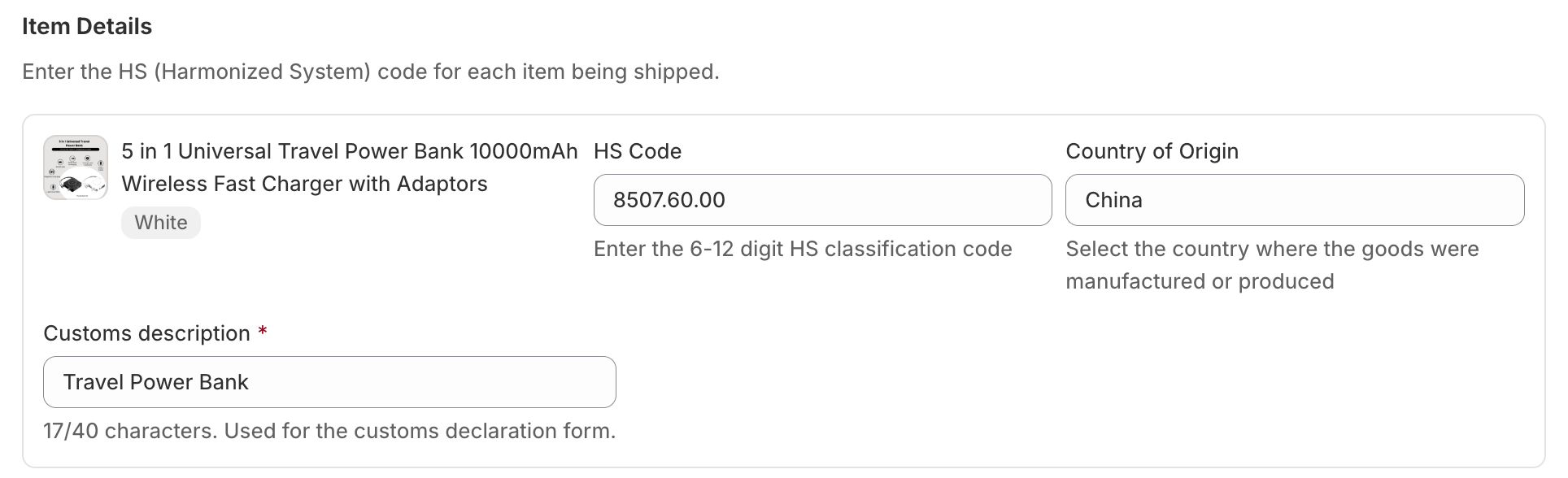 **Key details:**
* Each active line item gets its own **Customs description** field (maximum **40 characters**)
* Descriptions are used on the Australia Post customs declaration form—not the separate **Goods description** field, which is only used when the export reason is **Other**
* If you have already saved a customs declaration for the order, your saved descriptions are kept and are not overwritten
**Default description order** (when no saved description exists):
1. **Saved description** from a previous customs declaration on the order (if any)
2. **Product metafield value** (if you mapped a product metafield in Settings—see below)
3. **Product title**
4. **Parcel contents** (fallback when no title is available)
**Orders with more than 20 line items:**
Australia Post limits item content lines on the customs form. When an order has **more than 20** active line items, the app groups items by HS code and country of origin and suggests grouped descriptions. You can review and edit those grouped descriptions before confirming. Grouped suggestions use the same default order above (metafield value or product title) when building the suggested text.
### Prefill item descriptions from a product metafield
If product titles are too generic for customs (for example, internal SKUs or marketing names), you can store a customs-friendly description on each product and have the app prefill it automatically.
This is optional. If you do not configure a metafield mapping, the app continues to use **product titles** as today.
**Requirements:**
* The metafield must be a **product-level** definition in Shopify
* Only **Single line text** metafield types are supported
* The metafield definition must already exist in Shopify before it appears in the app dropdown
#### Step 1: Create a product metafield in Shopify
Create a product metafield definition in Shopify Admin for the description you want to use on customs forms—for example, `customs.description` or a name your team already uses.
In Shopify Admin, go to **Settings** → **Custom data** → **Products** (or open a product and add a metafield definition from the **Metafields** section).
Click **Add definition** and choose type **Single line text**. Other types (multi-line text, lists, numbers, and so on) are not supported for this feature.
Give it a clear name (for example, **Customs description**) and note the **namespace** and **key**—you will select this definition in the app.
Save the metafield definition.
#### Step 2: Enter values on your products
Add a customs-friendly description on each product. Use plain language suitable for customs authorities (material, product type, intended use)—not internal SKUs alone.
Go to **Products** in Shopify Admin and open a product you ship internationally.
Scroll to the **Metafields** section on the product page.
Fill in your single-line text metafield with the description you want on customs forms (maximum 40 characters is enforced when creating labels).
Save the product. Repeat for other products as needed.
Use Shopify **bulk edit** to update metafield values across many products at once—similar to how you can bulk-edit dimension metafields. See [Product & Variant Dimensions](/product-variant-dimensions) for bulk-edit workflow tips.
#### Step 3: Map the metafield in Kivaro Settings
Tell the app which product metafield to use for customs description defaults.
**Key details:**
* Each active line item gets its own **Customs description** field (maximum **40 characters**)
* Descriptions are used on the Australia Post customs declaration form—not the separate **Goods description** field, which is only used when the export reason is **Other**
* If you have already saved a customs declaration for the order, your saved descriptions are kept and are not overwritten
**Default description order** (when no saved description exists):
1. **Saved description** from a previous customs declaration on the order (if any)
2. **Product metafield value** (if you mapped a product metafield in Settings—see below)
3. **Product title**
4. **Parcel contents** (fallback when no title is available)
**Orders with more than 20 line items:**
Australia Post limits item content lines on the customs form. When an order has **more than 20** active line items, the app groups items by HS code and country of origin and suggests grouped descriptions. You can review and edit those grouped descriptions before confirming. Grouped suggestions use the same default order above (metafield value or product title) when building the suggested text.
### Prefill item descriptions from a product metafield
If product titles are too generic for customs (for example, internal SKUs or marketing names), you can store a customs-friendly description on each product and have the app prefill it automatically.
This is optional. If you do not configure a metafield mapping, the app continues to use **product titles** as today.
**Requirements:**
* The metafield must be a **product-level** definition in Shopify
* Only **Single line text** metafield types are supported
* The metafield definition must already exist in Shopify before it appears in the app dropdown
#### Step 1: Create a product metafield in Shopify
Create a product metafield definition in Shopify Admin for the description you want to use on customs forms—for example, `customs.description` or a name your team already uses.
In Shopify Admin, go to **Settings** → **Custom data** → **Products** (or open a product and add a metafield definition from the **Metafields** section).
Click **Add definition** and choose type **Single line text**. Other types (multi-line text, lists, numbers, and so on) are not supported for this feature.
Give it a clear name (for example, **Customs description**) and note the **namespace** and **key**—you will select this definition in the app.
Save the metafield definition.
#### Step 2: Enter values on your products
Add a customs-friendly description on each product. Use plain language suitable for customs authorities (material, product type, intended use)—not internal SKUs alone.
Go to **Products** in Shopify Admin and open a product you ship internationally.
Scroll to the **Metafields** section on the product page.
Fill in your single-line text metafield with the description you want on customs forms (maximum 40 characters is enforced when creating labels).
Save the product. Repeat for other products as needed.
Use Shopify **bulk edit** to update metafield values across many products at once—similar to how you can bulk-edit dimension metafields. See [Product & Variant Dimensions](/product-variant-dimensions) for bulk-edit workflow tips.
#### Step 3: Map the metafield in Kivaro Settings
Tell the app which product metafield to use for customs description defaults.
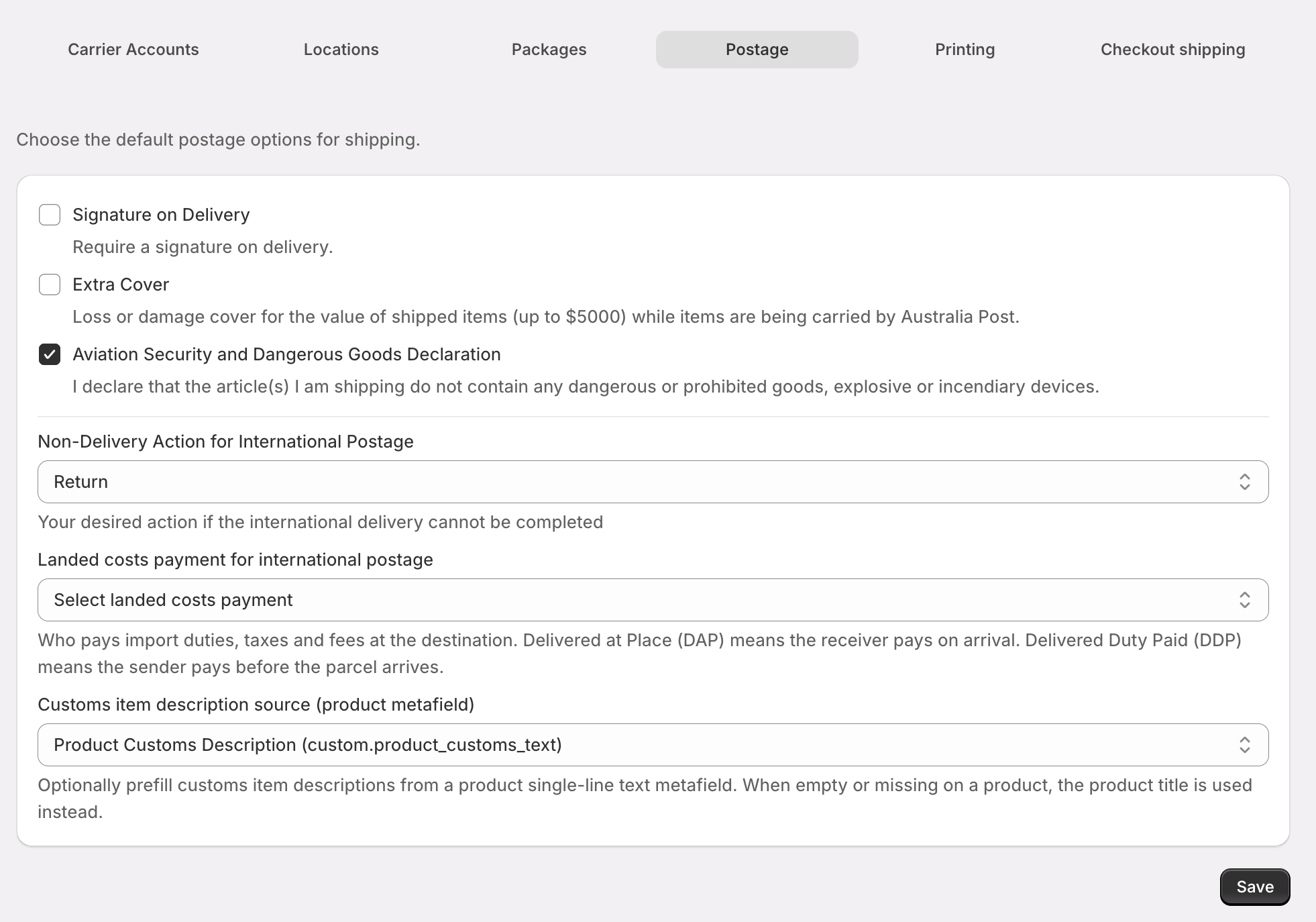 In the app, go to **Settings** → **Postage**.
Under **Customs item description source (product metafield)**, choose your metafield from the dropdown. Select **None (use product title)** to turn this off.
Save your settings. The mapping applies to new customs declarations and label creation going forward.
**How the app uses the mapping:**
| Situation | What the app uses for the default description |
| --------------------------------------------------- | --------------------------------------------- |
| Metafield mapping **not** configured | Product title |
| Metafield configured and product **has a value** | Metafield value (trimmed, max 40 characters) |
| Metafield configured but product value is **empty** | Product title |
| You **edited** the description on the customs form | Your edited value (saved on the order) |
Only **product-level** metafields are read—not variant metafields. Set the value on the product (or ensure the product record has the value your variants inherit from).
If a previously selected metafield definition is deleted in Shopify, the app shows a warning in Settings and falls back to product titles until you choose another metafield or clear the setting.
### Export Declaration Numbers (EDN)
For shipments over certain values, you need an Export Declaration Number:
EDN is mandatory for shipments over \$2,000 AUD in value.
**When EDN is required:**
* Shipments valued over \$2,000 AUD
* Certain restricted or controlled goods
* Destination country requirements
**How to obtain EDN:**
1. Register with Australian Border Force
2. Complete export declaration online
3. Receive EDN for your shipment
4. Enter EDN in the app when creating labels
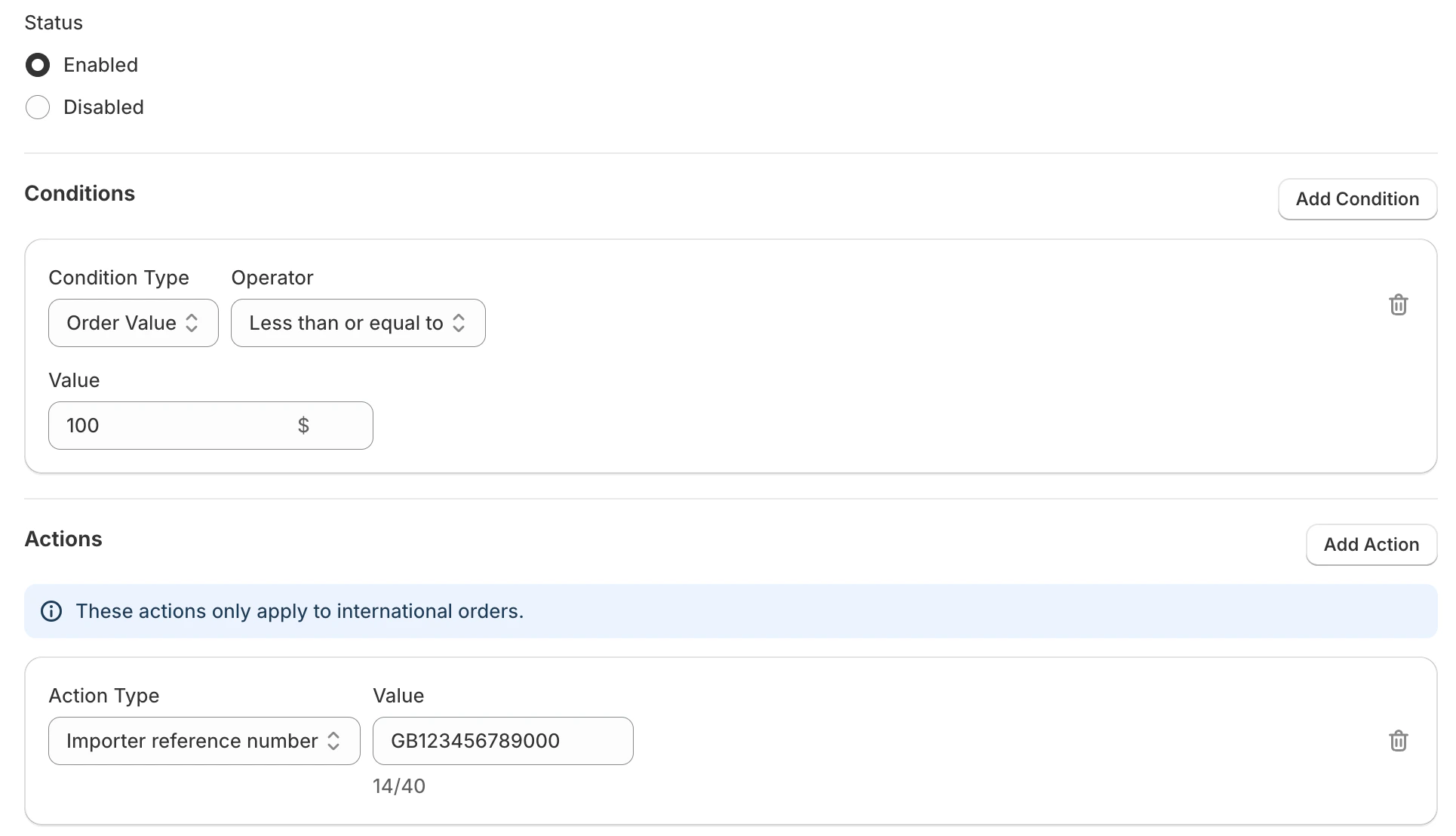
## Setting Importer Reference via Shipping Rules
You can automatically set the **importer reference number** for international shipments using [Shipping Rules](/shipping-rules). When an order matches a rule that has the **Importer reference number** action, the app applies that value to the customs declaration for the label—useful when you routinely use a fixed importer reference (e.g. your company or client reference) for certain destinations or order types.
**How to set it:**
1. Go to **Shipping Rules** in the app and create or edit a rule.
2. Add a **condition** that targets international orders (e.g. Destination country **not equals** Australia).
3. In **Actions**, add **Importer reference number** and enter your reference (max 40 characters).
4. Save and enable the rule.
When you create an international label for an order that matches this rule, the importer reference will be prefilled on the customs declaration.
In the app, go to **Settings** → **Postage**.
Under **Customs item description source (product metafield)**, choose your metafield from the dropdown. Select **None (use product title)** to turn this off.
Save your settings. The mapping applies to new customs declarations and label creation going forward.
**How the app uses the mapping:**
| Situation | What the app uses for the default description |
| --------------------------------------------------- | --------------------------------------------- |
| Metafield mapping **not** configured | Product title |
| Metafield configured and product **has a value** | Metafield value (trimmed, max 40 characters) |
| Metafield configured but product value is **empty** | Product title |
| You **edited** the description on the customs form | Your edited value (saved on the order) |
Only **product-level** metafields are read—not variant metafields. Set the value on the product (or ensure the product record has the value your variants inherit from).
If a previously selected metafield definition is deleted in Shopify, the app shows a warning in Settings and falls back to product titles until you choose another metafield or clear the setting.
### Export Declaration Numbers (EDN)
For shipments over certain values, you need an Export Declaration Number:
EDN is mandatory for shipments over \$2,000 AUD in value.
**When EDN is required:**
* Shipments valued over \$2,000 AUD
* Certain restricted or controlled goods
* Destination country requirements
**How to obtain EDN:**
1. Register with Australian Border Force
2. Complete export declaration online
3. Receive EDN for your shipment
4. Enter EDN in the app when creating labels
## Setting Importer Reference via Shipping Rules
You can automatically set the **importer reference number** for international shipments using [Shipping Rules](/shipping-rules). When an order matches a rule that has the **Importer reference number** action, the app applies that value to the customs declaration for the label—useful when you routinely use a fixed importer reference (e.g. your company or client reference) for certain destinations or order types.
**How to set it:**
1. Go to **Shipping Rules** in the app and create or edit a rule.
2. Add a **condition** that targets international orders (e.g. Destination country **not equals** Australia).
3. In **Actions**, add **Importer reference number** and enter your reference (max 40 characters).
4. Save and enable the rule.
When you create an international label for an order that matches this rule, the importer reference will be prefilled on the customs declaration.
 ## Country-Specific Requirements
### Popular Destinations
**Requirements:** - HS codes required for all items - Detailed item
descriptions - Country of origin mandatory - FDA approval for food/cosmetics
**Restrictions:** - No dangerous goods - Limited alcohol shipments -
Restricted agricultural products
{" "}
**Requirements:** - HS codes and descriptions - Country of origin - VAT
implications for EU shipments - Brexit documentation **Restrictions:** - Food
and agricultural products - Certain electronics - Cultural artifacts
{" "}
**Requirements:** - HS codes mandatory - Detailed descriptions - Country of
origin - NAFTA documentation if applicable **Restrictions:** - Firearms and
ammunition - Certain food products - Endangered species materials
**Requirements:** - HS codes and descriptions - Country of origin -
Biosecurity declarations - Food safety certificates **Restrictions:** -
Strict biosecurity rules - Limited food imports - Agricultural product
restrictions
## Creating International Labels
### Step-by-Step Process
Choose an order with an international shipping address
For each item, provide: HS code, customs description, country of origin, and individual value. **HS code and country of origin are prefilled from Shopify product details when available**—review and edit as needed. **Customs descriptions** default from your product metafield (if configured) or product title and can be edited per line item.
Select the **export reason**, **commercial value** (Yes / No), and landed costs payment if applicable
Include EDN if required for high-value shipments
Verify all customs information is complete and accurate
Create the international shipping label
### Label Format Requirements
International shipping labels can only be printed on A4 paper due to their
size requirements.
**Label specifications:**
* **Paper size**: A4 only
* **Format**: Single label per page
* **Content**: Includes customs declaration
* **Printing**: High-quality printer recommended
## Common International Shipping Issues
### Documentation Problems
**Problem**: Items rejected due to missing or incorrect HS codes
**Solution**: - Research correct HS codes for your products - Maintain a
database of product classifications - **Add HS codes to your products in Shopify** (inventory item’s Harmonized System code) so they are prefilled when creating labels—how to add HS codes in Shopify - Update product information in Shopify
* Use generic codes as last resort
{" "}
**Problem**: Customs reject shipments with vague descriptions **Solution**: -
Use specific, detailed descriptions - Include material composition - Mention
intended use - Avoid generic terms like "gift" or "merchandise" - Store
customs-friendly descriptions in a **product metafield** and map it in
**Settings → Postage** so labels prefill consistently
**Problem**: Declared values don't match customs assessment **Solution**: -
Use actual sale prices - Include shipping costs in total value - Provide
invoices if requested - Be consistent with previous shipments
### Shipping Restrictions
Always check destination country restrictions before shipping.
**Common restricted items:**
* **Food products**: Most countries have strict food import rules
* **Electronics**: Some countries require special certifications
* **Cosmetics**: May need health department approval
* **Medicines**: Usually prohibited without proper licensing
* **Cultural items**: May require export permits
### Delivery Issues
**Causes**: Incomplete documentation, restricted items, random inspections
**Prevention**: - Ensure all documentation is complete - Use accurate HS
codes and descriptions - Avoid shipping restricted items - Provide detailed
item information
**Causes**: Rejected by customs, refused by recipient, incorrect address
**Prevention**: - Verify recipient addresses - Include contact information -
Use appropriate packaging - Consider insurance for valuable items
## Best Practices
### Preparation
Maintain a comprehensive database of: - HS codes for all products - Country
of origin information - Detailed product descriptions (or a dedicated
product metafield for customs descriptions) - Export restrictions
by destination
Create templates for: - Common export reasons - Standard item descriptions -
Country-specific requirements - Emergency contact information
Train your team on: - International shipping requirements - Customs
documentation - Restricted items lists - Emergency procedures
### Ongoing Management
* Monitor changes in international regulations - Update HS codes as needed -
Review destination country requirements - Track shipping performance and
issues
{" "}
* Set clear expectations for delivery times - Explain potential customs delays
* Provide tracking information - Handle customs duty questions
* Factor in customs duties and taxes - Consider insurance for valuable
shipments - Optimize packaging for international shipping - Monitor shipping
costs and performance
## Troubleshooting
### Common Error Messages
**Message**: "HS Code is required when declaration is not accepted"
**Solution**: Add valid HS codes for all items or accept the general
declaration
{" "}
**Message**: "Export Declaration Number is required for orders over \$2,000"
**Solution**: Obtain and enter the EDN for high-value shipments
**Message**: "Country of origin is required for shipments to this
destination" **Solution**: Specify the country where goods were manufactured. You can **set country of origin on your products in Shopify** (inventory item) so it is prefilled when creating international labels.
### Getting Help
If you encounter issues with international shipping:
1. **Check documentation**: Ensure all required information is provided
2. **Verify restrictions**: Confirm items can be shipped to destination
3. **Contact support**: Reach out for assistance with complex cases
4. **Review regulations**: Stay updated on changing international requirements
Get help with international shipping issues
Official international shipping guidelines
## Country-Specific Requirements
### Popular Destinations
**Requirements:** - HS codes required for all items - Detailed item
descriptions - Country of origin mandatory - FDA approval for food/cosmetics
**Restrictions:** - No dangerous goods - Limited alcohol shipments -
Restricted agricultural products
{" "}
**Requirements:** - HS codes and descriptions - Country of origin - VAT
implications for EU shipments - Brexit documentation **Restrictions:** - Food
and agricultural products - Certain electronics - Cultural artifacts
{" "}
**Requirements:** - HS codes mandatory - Detailed descriptions - Country of
origin - NAFTA documentation if applicable **Restrictions:** - Firearms and
ammunition - Certain food products - Endangered species materials
**Requirements:** - HS codes and descriptions - Country of origin -
Biosecurity declarations - Food safety certificates **Restrictions:** -
Strict biosecurity rules - Limited food imports - Agricultural product
restrictions
## Creating International Labels
### Step-by-Step Process
Choose an order with an international shipping address
For each item, provide: HS code, customs description, country of origin, and individual value. **HS code and country of origin are prefilled from Shopify product details when available**—review and edit as needed. **Customs descriptions** default from your product metafield (if configured) or product title and can be edited per line item.
Select the **export reason**, **commercial value** (Yes / No), and landed costs payment if applicable
Include EDN if required for high-value shipments
Verify all customs information is complete and accurate
Create the international shipping label
### Label Format Requirements
International shipping labels can only be printed on A4 paper due to their
size requirements.
**Label specifications:**
* **Paper size**: A4 only
* **Format**: Single label per page
* **Content**: Includes customs declaration
* **Printing**: High-quality printer recommended
## Common International Shipping Issues
### Documentation Problems
**Problem**: Items rejected due to missing or incorrect HS codes
**Solution**: - Research correct HS codes for your products - Maintain a
database of product classifications - **Add HS codes to your products in Shopify** (inventory item’s Harmonized System code) so they are prefilled when creating labels—how to add HS codes in Shopify - Update product information in Shopify
* Use generic codes as last resort
{" "}
**Problem**: Customs reject shipments with vague descriptions **Solution**: -
Use specific, detailed descriptions - Include material composition - Mention
intended use - Avoid generic terms like "gift" or "merchandise" - Store
customs-friendly descriptions in a **product metafield** and map it in
**Settings → Postage** so labels prefill consistently
**Problem**: Declared values don't match customs assessment **Solution**: -
Use actual sale prices - Include shipping costs in total value - Provide
invoices if requested - Be consistent with previous shipments
### Shipping Restrictions
Always check destination country restrictions before shipping.
**Common restricted items:**
* **Food products**: Most countries have strict food import rules
* **Electronics**: Some countries require special certifications
* **Cosmetics**: May need health department approval
* **Medicines**: Usually prohibited without proper licensing
* **Cultural items**: May require export permits
### Delivery Issues
**Causes**: Incomplete documentation, restricted items, random inspections
**Prevention**: - Ensure all documentation is complete - Use accurate HS
codes and descriptions - Avoid shipping restricted items - Provide detailed
item information
**Causes**: Rejected by customs, refused by recipient, incorrect address
**Prevention**: - Verify recipient addresses - Include contact information -
Use appropriate packaging - Consider insurance for valuable items
## Best Practices
### Preparation
Maintain a comprehensive database of: - HS codes for all products - Country
of origin information - Detailed product descriptions (or a dedicated
product metafield for customs descriptions) - Export restrictions
by destination
Create templates for: - Common export reasons - Standard item descriptions -
Country-specific requirements - Emergency contact information
Train your team on: - International shipping requirements - Customs
documentation - Restricted items lists - Emergency procedures
### Ongoing Management
* Monitor changes in international regulations - Update HS codes as needed -
Review destination country requirements - Track shipping performance and
issues
{" "}
* Set clear expectations for delivery times - Explain potential customs delays
* Provide tracking information - Handle customs duty questions
* Factor in customs duties and taxes - Consider insurance for valuable
shipments - Optimize packaging for international shipping - Monitor shipping
costs and performance
## Troubleshooting
### Common Error Messages
**Message**: "HS Code is required when declaration is not accepted"
**Solution**: Add valid HS codes for all items or accept the general
declaration
{" "}
**Message**: "Export Declaration Number is required for orders over \$2,000"
**Solution**: Obtain and enter the EDN for high-value shipments
**Message**: "Country of origin is required for shipments to this
destination" **Solution**: Specify the country where goods were manufactured. You can **set country of origin on your products in Shopify** (inventory item) so it is prefilled when creating international labels.
### Getting Help
If you encounter issues with international shipping:
1. **Check documentation**: Ensure all required information is provided
2. **Verify restrictions**: Confirm items can be shipped to destination
3. **Contact support**: Reach out for assistance with complex cases
4. **Review regulations**: Stay updated on changing international requirements
Get help with international shipping issues
Official international shipping guidelines